OAuth 2.0 for React Client
The DTaaS React client website authorises users with the OAuth 2.0 PKCE authorisation flow. The setup steps are:
1. Choose a GitLab Server:
- OAuth 2.0 authorisation must be set up on a GitLab server. An on-premises GitLab installation is preferable to the commercial https://gitlab.com.
- The GitLab Omnibus Docker can be used for this purpose.
- The OAuth 2.0 application should be configured as an instance-wide authorization type.
2. Determine the Website's Hostname:
- Decide the hostname of the website before setting up OAuth on GitLab. A self-hosted GitLab instance is recommended, because other parts of the DTaaS platform use it too.
3. Define Callback and Logout URLs:
- For the PKCE authorisation flow to function correctly, two URLs are required: a callback URL and a logout URL.
- The callback URL tells the OAuth 2.0 provider where to redirect signed-in users. It differs from the landing homepage of the DTaaS platform.
- The logout URL is where users go after logging out.
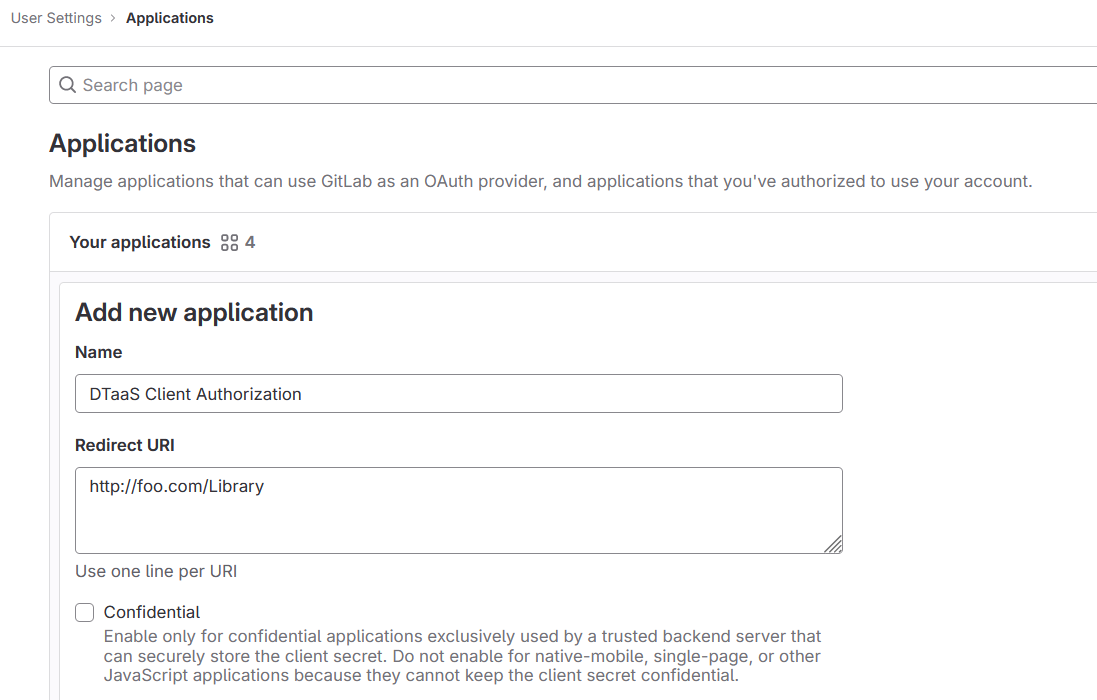
4. OAuth 2.0 Application Creation:
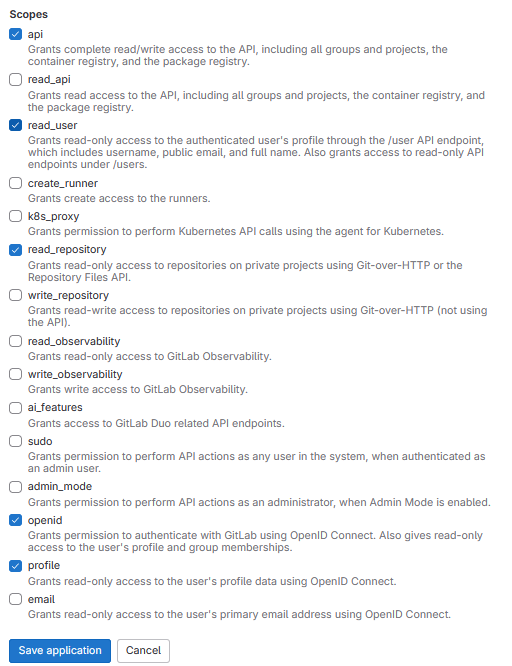
- During the creation of the OAuth 2.0 application on GitLab, the scope must be specified. The openid, profile, read_user, read_repository, and api scopes should be selected.
5. Application ID:
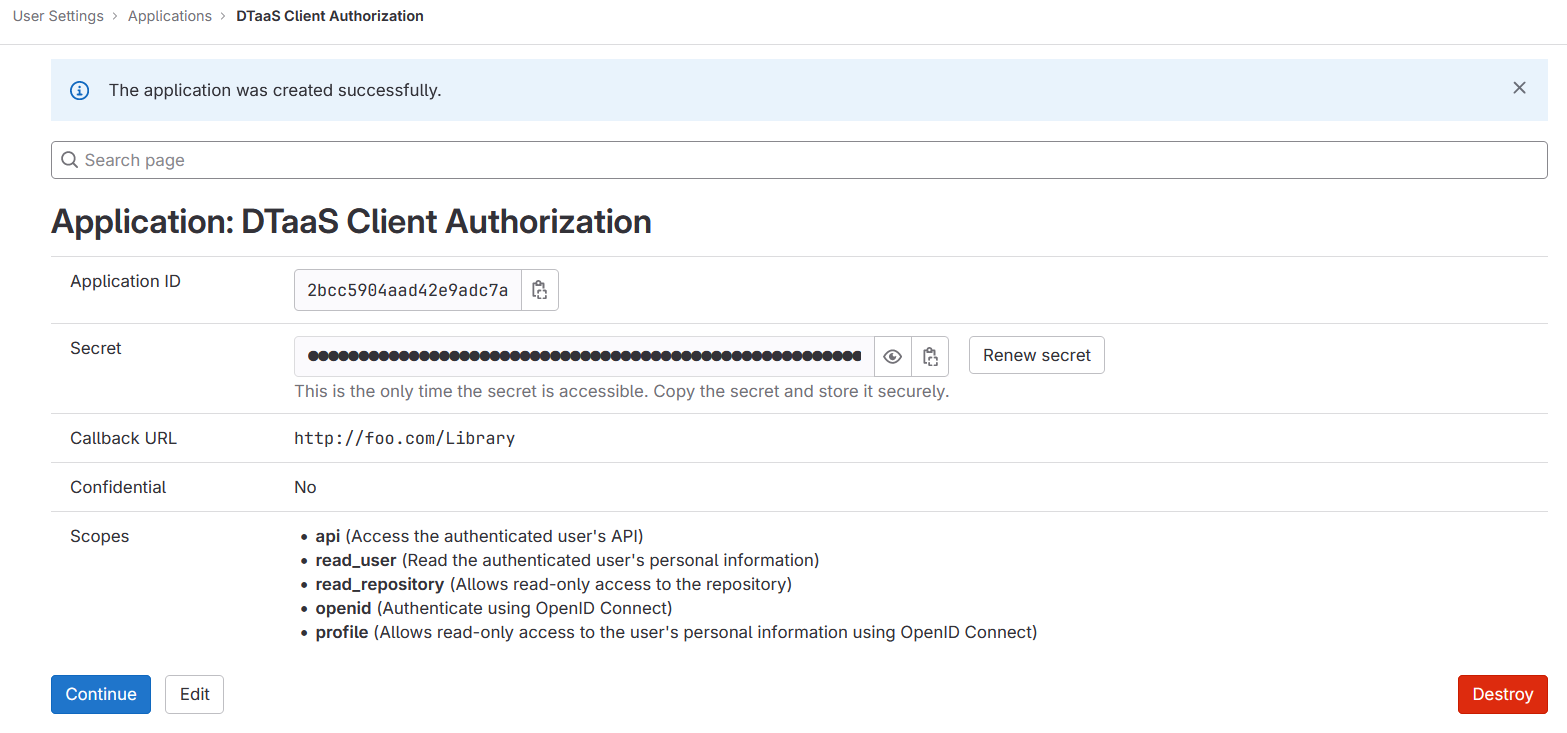
- After successfully creating the OAuth 2.0 application, GitLab generates an application ID. This long hexadecimal string is needed in the configuration files.
6. Required Information from OAuth 2.0 Application:
- The following information from the OAuth 2.0 application registered on GitLab is required:
| GitLab Variable Name | Variable Name in Client env.js | Default Value |
|---|---|---|
| OAuth 2.0 Provider | REACT_APP_AUTH_AUTHORITY | https://gitlab.intocps.org/ |
| Application ID | REACT_APP_CLIENT_ID | |
| Callback URL | REACT_APP_REDIRECT_URI | https://intocps.org/Library |
| Scopes | REACT_APP_GITLAB_SCOPES | openid, profile, read_user, read_repository, api |
7. Create User Accounts:
User accounts must be created in GitLab for all usernames chosen during installation. The server deployment packages use two default usernames, user1 and user2. Create GitLab accounts for whichever usernames your installation uses.
Username claim resolution for OIDC providers
DTaaS resolves the logged-in username from common OIDC claims, so it works with several providers (for example GitLab, Keycloak and Dex).
The client checks claims in this order:
preferred_usernameusernamenicknamelogin- local part of
email(before@) - local part of
upn(before@) - last path segment of
profileURL (GitLab-compatible fallback) sub
This order preserves existing GitLab behavior while allowing providers
that do not expose profile URLs to authenticate correctly.
The resolved username is restricted to a URL-path-safe character set
(A-Z a-z 0-9 . _ @ + -, and never the .. sequence). A claim that
does not match is skipped in favour of the next claim in the order
above. The check exists because the username is later used, unencoded,
as a path segment in backend GitLab URLs (see below).
Provider support versus backend account requirements
The sign-in steps above are written for GitLab because the rest of the DTaaS platform (workspaces, digital twins, libraries) relies on a GitLab instance. The username resolution itself works with any OIDC provider that issues one of the claims listed above (for example Keycloak, Dex or GitHub).
Authenticating with a non-GitLab provider only signs the user into the
website. Backend features also require that the resolved username
matches an existing account (namespace) on the configured GitLab
instance, because requests are constructed as
{gitlab}/{group}/{username}/-/raw/.... If no GitLab account with that
username exists, sign-in succeeds but GitLab-backed operations fail.
Administrators using an external identity provider must therefore keep
the provider usernames aligned with the GitLab usernames.