Digital Twins and DevOps
DevOps is a well-established software development practice. The DTaaS has an experimental feature that brings DevOps to digital twins.
Recordings of the latest workflows:
This feature requires a specific installation setup:
- Integrated GitLab installation
- A valid GitLab repository for the logged-in user. See an example repository. You can clone this repository and customise it as needed.
- A GitLab Runner linked to the user's GitLab repository.
To open the feature, click Automation in the menu and then the Digital Twins Page card.
DT Lifecycle
The Digital Twins Page implements the Create, Manage and Execute stages of a DT lifecycle. The suggested order of the lifecycle stages is:
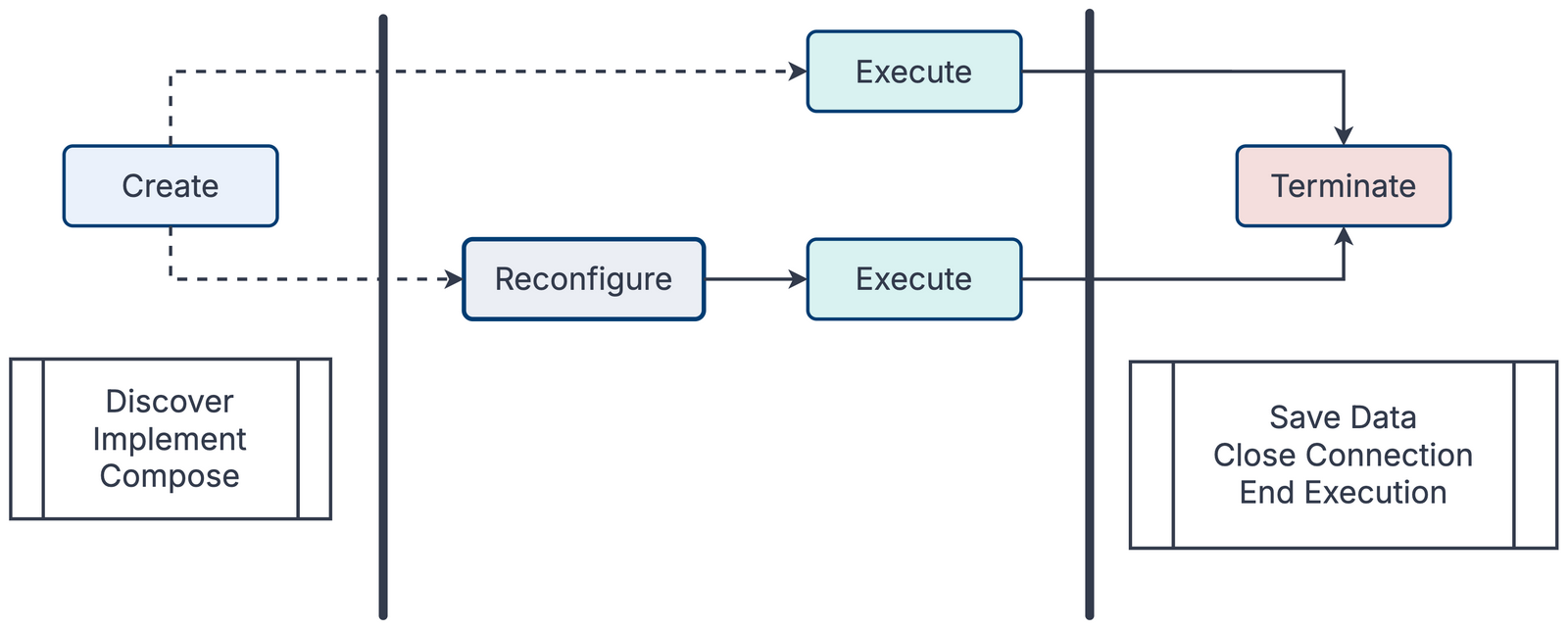
Each of the Create, Manage and Execute stages has its own tab. The DT assets for the Create stage are selected on the Library Page. The Manage tab reconfigures digital twins. Execution and termination happen on the Execute tab.
Create Tab
Users select reusable DT assets on the Library Page and then arrive on the Create tab. The following figure shows the Create tab after mass-spring-damper was selected as a reusable asset for the new DT.
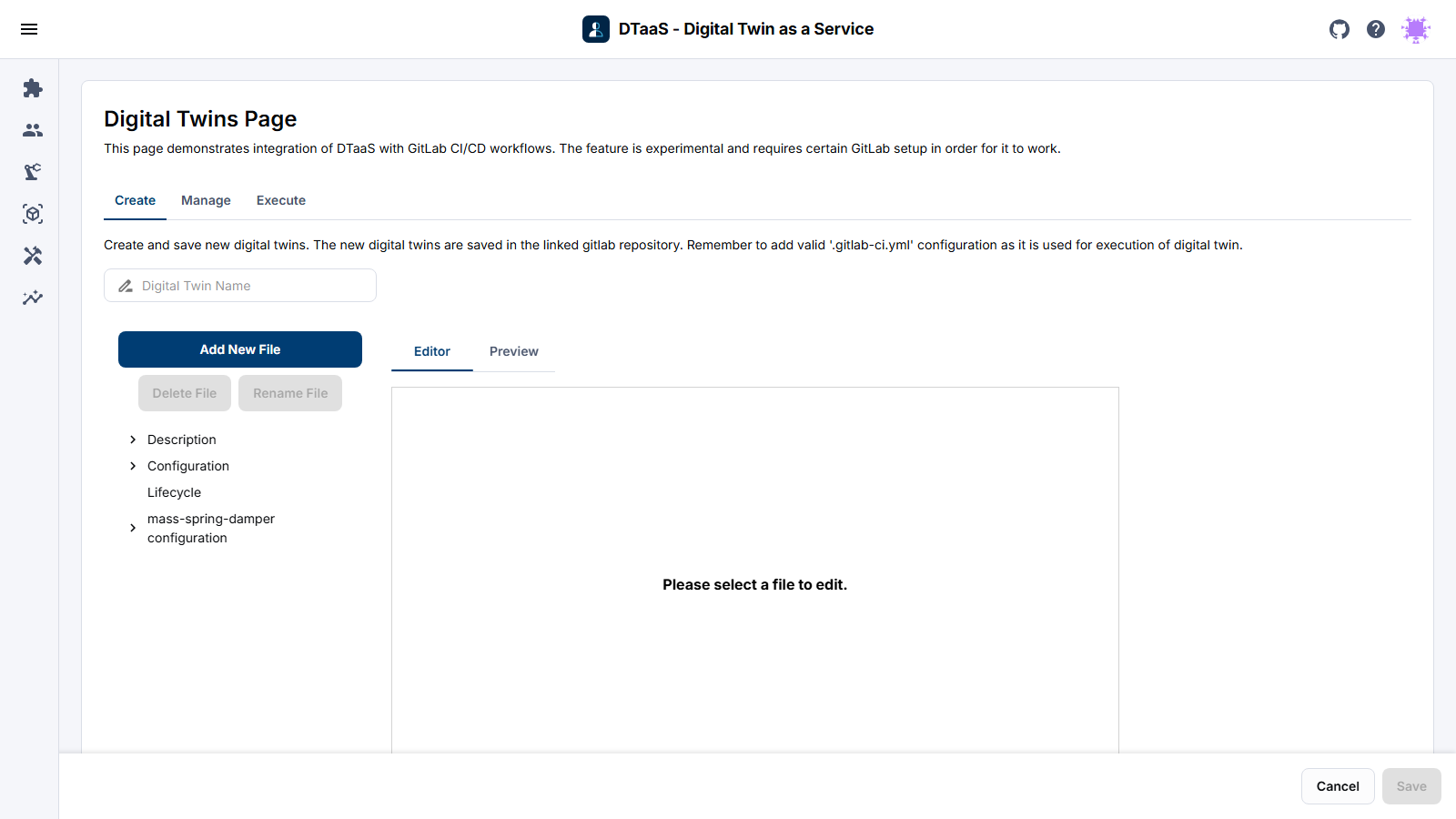
The menu on the left lets you create the necessary structure and elements of a new DT. Each reusable asset selected for the new DT appears in this menu, and its configuration can be updated.
The files in the left menu fall into three categories.
- Description: contains README.md, a full description of the DT, and description.md, a brief description. The brief description is shown on the DT cards. The Details button on the Manage tab shows the complete README.md.
- Configuration: contains a .gitlab-ci.yml for running the lifecycle scripts and other operations of the DT. You can add more JSON and YAML files to configure the new DT.
- Lifecycle: the DT lifecycle scripts.
The Add New File button adds new files in any of the three categories. Click the Save button to save the new DT. Newly created DTs appear on the Manage and Execute tabs straight away.
Manage Tab
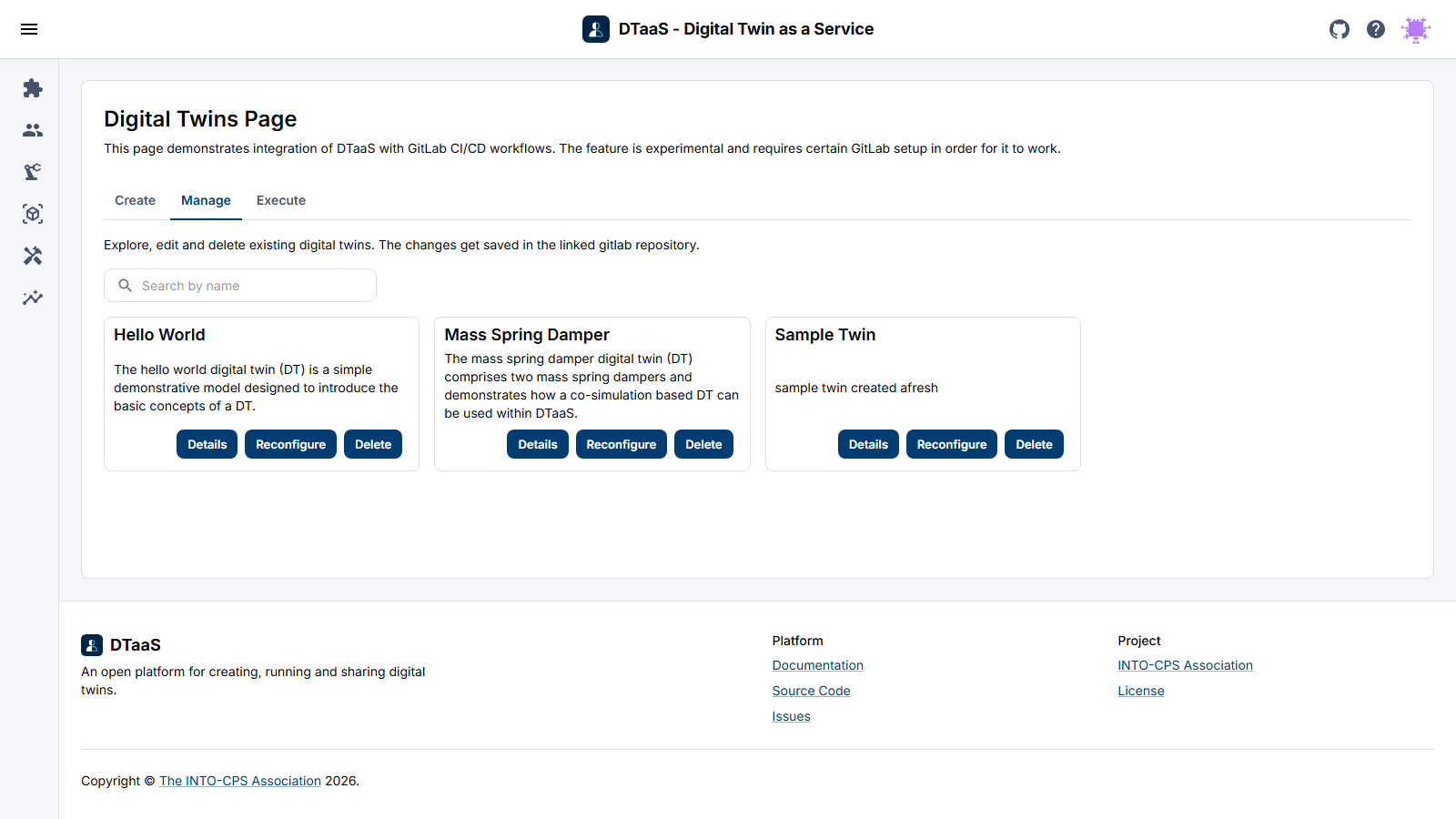
The Manage tab offers these operations on a digital twin:
- Check the details (Details button)
- Delete (Delete button)
- Modify or reconfigure (Reconfigure button)
A digital twin placed in the DTaaS has a recommended structure. See the assets page for an explanation and this example.
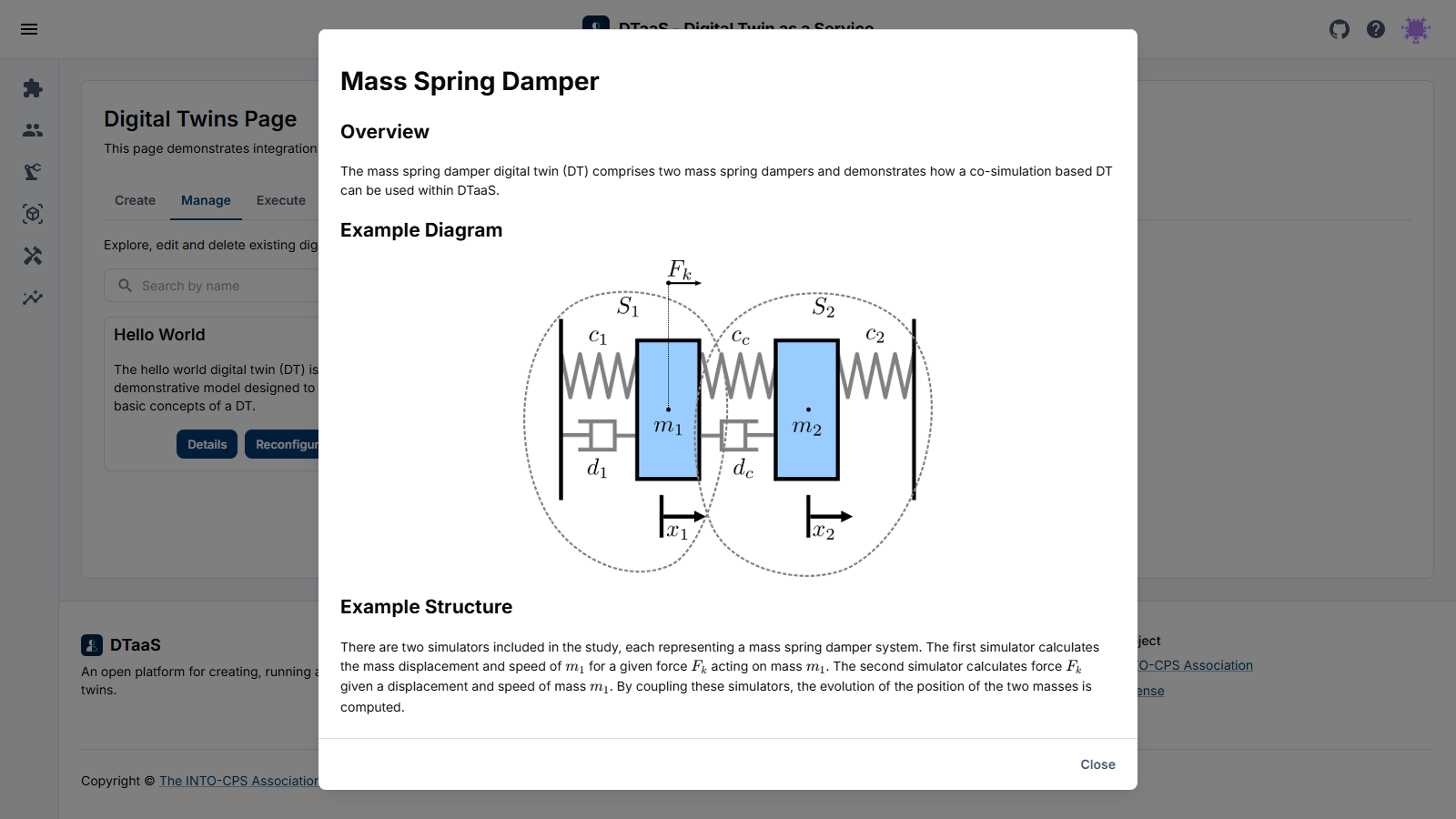
The Details button shows the README.md stored in the digital twin directory.
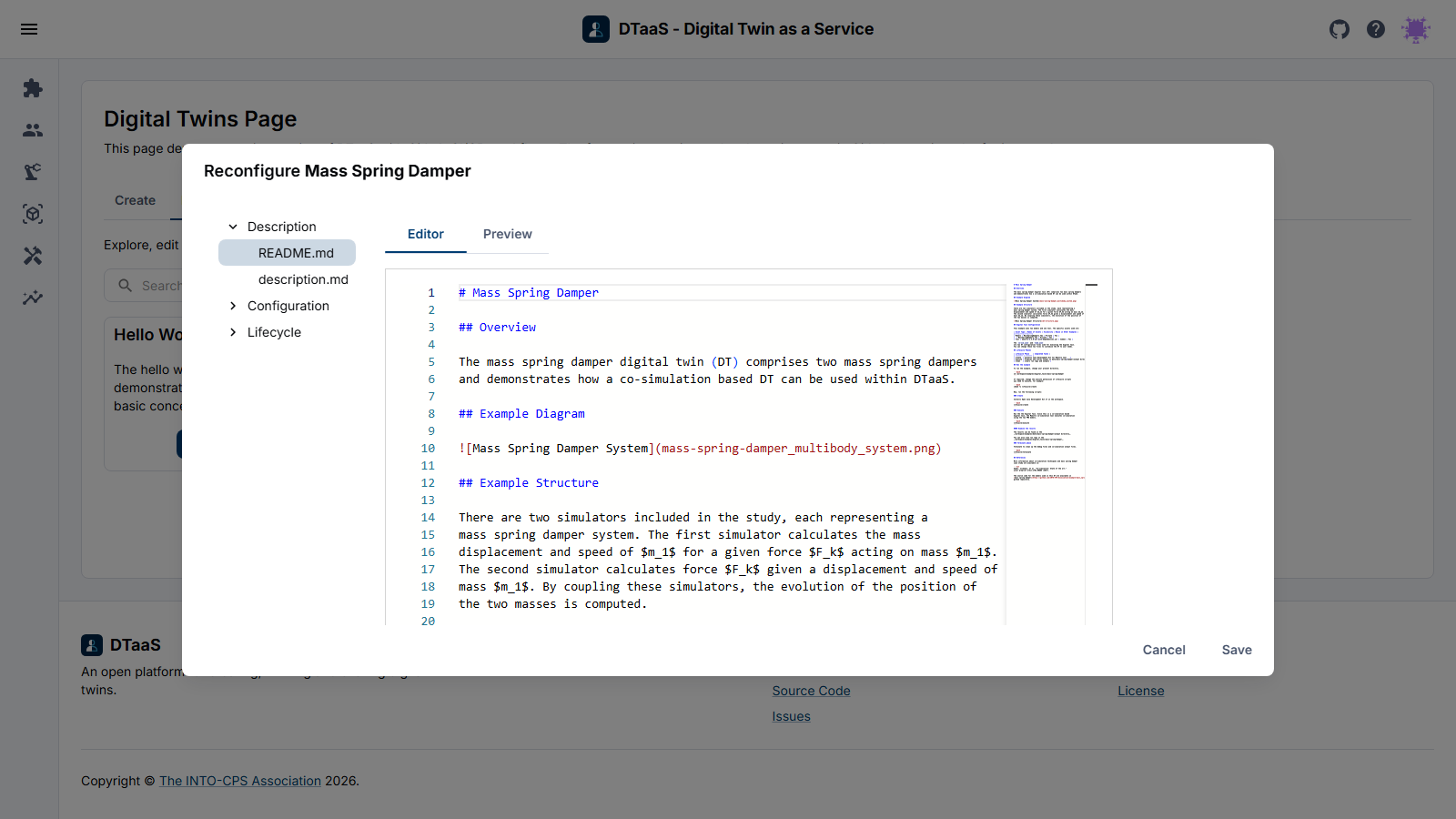
The Reconfigure button opens an editor with all the files of a digital twin, and all of them can be updated. The files fall into the same three categories.
- Description
- Configuration
- Lifecycle
Execute Tab
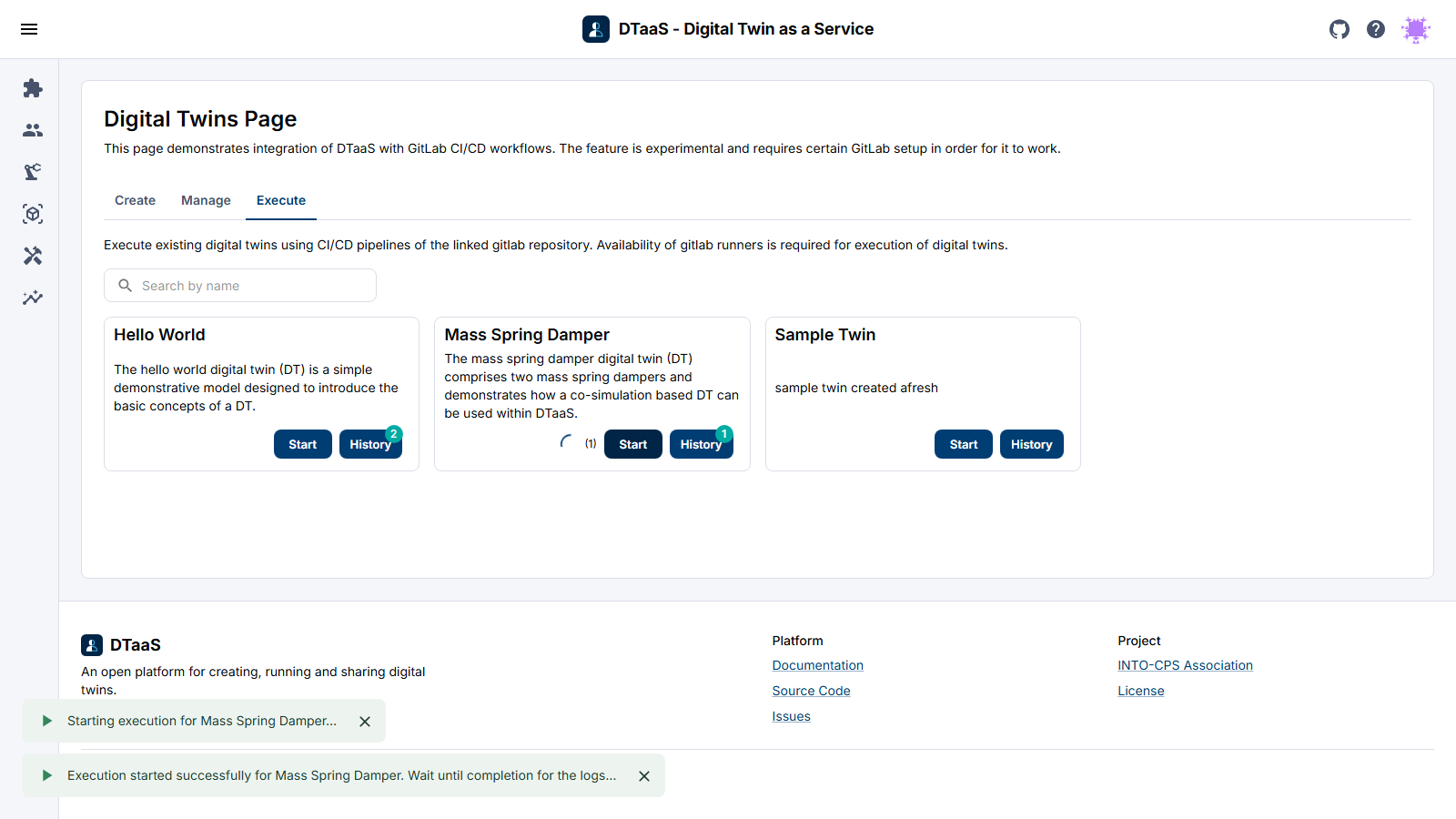
The Execute tab can run several digital twins at once. When an execution of a digital twin finishes, its execution log is available.