Install


This guide installs a secure, multi-user DTaaS deployment that uses an integrated GitLab instance for OAuth 2.0 authorisation.
Download dtaas-secure-server-integrated-gitlab-xx.zip from the latest release / pre-release page.
For the configuration reference, see config.md.
Important
This guide uses the hostname intocps.org as an example. Replace it
with the hostname of your server.
Overview
This package installs DTaaS as a multi-user web application with an integrated GitLab CE instance. GitLab is both the OAuth 2.0 authorisation provider and the DevOps backend for digital twin projects.
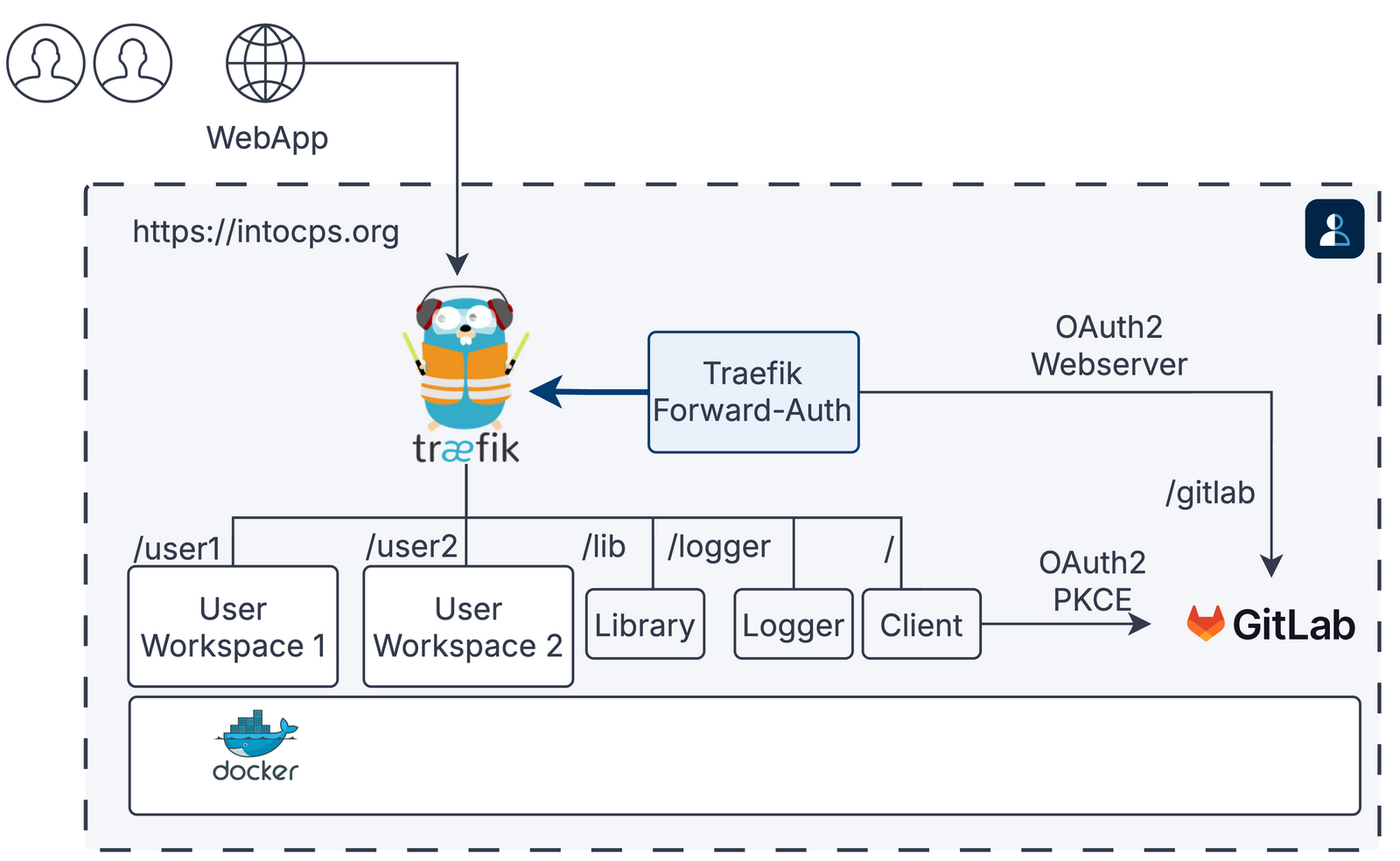
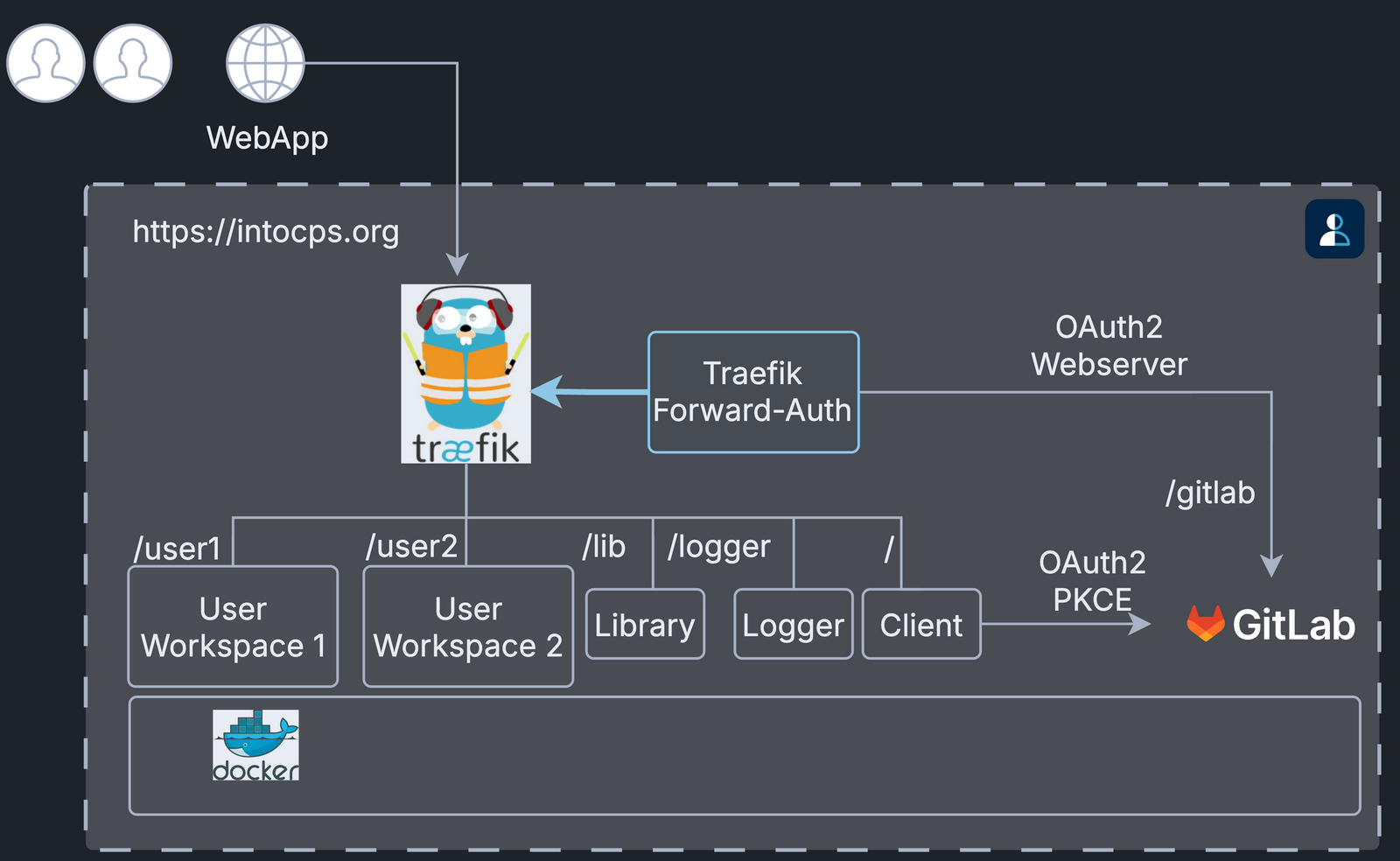
A path such as /user1 is the URL route of that service, for example
https://intocps.org/user1.
The thick arrow is the forward-auth check: Traefik asks
traefik-forward-auth to authorise each request before it routes it.
The docker-compose.yml starts the following services:
| Service | Purpose |
|---|---|
| traefik | Reverse proxy with TLS termination |
| client | DTaaS React frontend |
| logger-ms | Logger microservice |
| user1 / user2 | JupyterLab user workspaces |
| libms | Library management microservice |
| traefik-forward-auth | OAuth 2.0 authorisation middleware |
| gitlab | Integrated GitLab CE (OAuth 2.0 provider) |
Prerequisites
| Requirement | Details |
|---|---|
| Docker Engine | v28 or later with Compose plugin |
| Domain name | A domain name (e.g. intocps.org) or IP address |
| TLS certificate | fullchain.pem and privkey.pem for the domain. Obtain via certbot or a certificate provider |
Quick Start
1. Create Configuration Files
Edit config/.env and set SERVER_DNS, USERNAME1 and USERNAME2.
Leave the OAUTH_* variables as placeholders for now; you fill them in
once the GitLab instance is running (see step 5).
See config.md for a reference of every variable.
2. Create User Workspace Directories
The logger microservice writes its events to logs/logger. Create the
directory and give it to uid 1000, the user that runs the logger:
logs/ itself holds the GitLab logs, so change the owner of
logs/logger only.
3. Add TLS Certificates
Traefik falls back to self-signed certificates if these files are absent or invalid.
4. Start Services
GitLab takes a few minutes to become healthy. Watch its status with:
5. Configure GitLab
Once the GitLab container shows as healthy:
-
Log in to
https://intocps.org/gitlabasroot. The initial password is inconfig/gitlab/initial_root_password.Warning
GitLab deletes this file 24 hours after the first start. Save the password immediately.
-
Create user accounts (see GitLab docs). The usernames must match
USERNAME1/USERNAME2inconfig/.env. -
Register two OAuth 2.0 applications in GitLab (Admin Area → Applications):
-
DTaaS Client Authorization for the React SPA frontend. See the client auth docs.
-
DTaaS Server Authorization for the Traefik forward-auth backend. See the server auth docs.
-
Put the generated OAuth 2.0 credentials into the configuration files:
- Set
REACT_APP_CLIENT_IDandREACT_APP_AUTH_AUTHORITYinconfig/client.js. -
Set
OAUTH_URL,OAUTH_CLIENT_IDandOAUTH_CLIENT_SECRETinconfig/.env. -
Update the user permissions in
config/conf.server. -
Reload the services:
6. Verify
| URL | Expected result |
|---|---|
https://intocps.org |
DTaaS web interface (redirects to GitLab sign-in) |
https://intocps.org/gitlab |
Integrated GitLab instance |
https://intocps.org/user1 |
User 1 workspace (after sign-in) |
https://intocps.org/user2 |
User 2 workspace (after sign-in) |
Stop
Directory Layout
References
Image sources: Traefik logo, GitLab