Local GitLab Instance
This guide provides instructions for installing a dedicated local GitLab instance. This GitLab installation can be used as an OAuth 2.0 authorization provider and DevOps backend for the DTaaS platform.
Design
Two possible methods exist for installing GitLab alongside the DTaaS:
- At a dedicated domain name (e.g.,
- At a URL path on an existing WWW server (e.g.,
The first is a two-server installation setup where GitLab and DTaaS are installed on separate servers. An illustration of this setup is shown below.
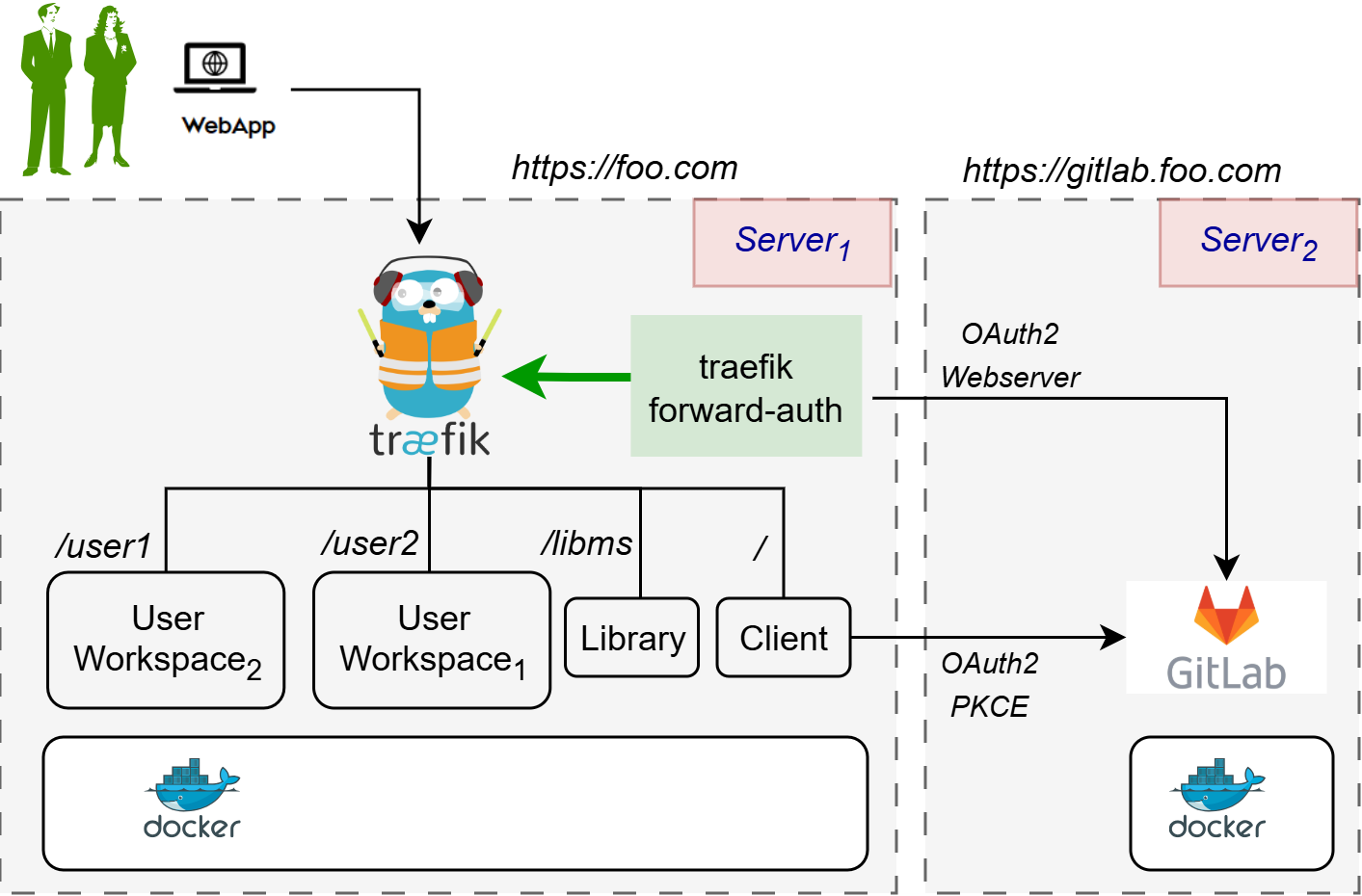
🗒️ The text starting with / at the beginning indicates the URL route
at which a certain service is available. For example, user workspace
is available at https://localhost/user1.
The above figure shows integration of the DTaaS with a GitLab instance hosted at separate hostname, for example at https://gitlab.foo.com.
The second installation setup involves installation of both the GitLab and the DTaaS on the same server. An illustration of the integrated single-server installation setup is shown below.
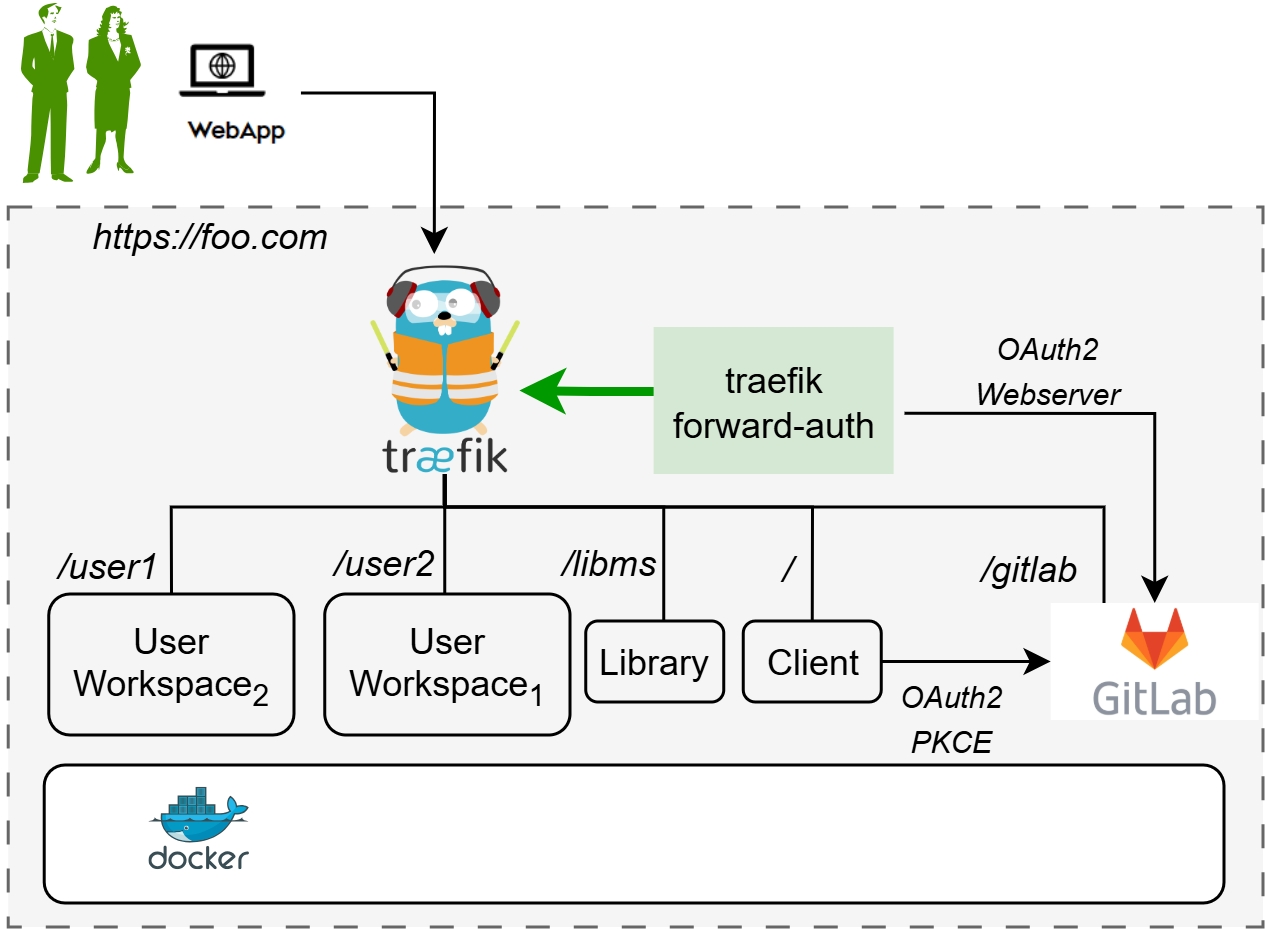
This figure shows integration of GitLab instance hosted along side the DTaaS. The integrated GitLab is hosted behind the Traefik proxy.
This guide illustrates the installation of GitLab at:
compose.gitlab.yml
can be adapted to install GitLab at a dedicated domain name.
Download Package
The software is available as a zip package. The package should be downloaded and unzipped. A new DTaaS-v0.8.0 folder is created. The remaining installation instructions assume the use of a Windows/Linux/MacOS terminal in the DTaaS-v0.8.0 folder.
Configure and Install
This directory contains files needed to set up the docker container containing the local GitLab instance.
./data,./config,./logsare the directories that will contain data for the GitLab instancecompose.gitlab.ymland.envare the Docker compose and environment files to manage the containerized instance of GitLab
If the DTaaS platform and GitLab are to be hosted at https://foo.com, then
the client config file (deploy/config/client/env.js)
needs to use the https://foo.com/gitlab as REACT_APP_AUTH_AUTHORITY.
In addition, this hosting at https://foo.com also requires changes to
config file (.env.server).
If the DTaaS platform and GitLab are to be hosted at https://localhost, then
the client config file (deploy/config/client/env.local.js)
needs to use the https://localhost/gitlab as REACT_APP_AUTH_AUTHORITY.
If the application and the integrated GitLab are to be hosted at
https://localhost/gitlab, then .env.server need not be modified.
Edit the .env file available in this directory to contain the following variables:
| Variable | Example Value | Explanation |
|---|---|---|
| DTAAS_DIR | '/Users/username/DTaaS' | Full path to the DTaaS directory. This is an absolute path with no trailing slash. |
| SERVER_DNS | either foo.com or localhost |
The server DNS, if you are deploying with a dedicated server. Remember not use http(s) at the beginning of the DNS string. |
NOTE: The DTaaS client uses the react-oidc-context node package, which
incorrectly causes redirects to use the HTTPS URL scheme. This is a
known issue with the package,
and forces us to use HTTPS for the DTaaS server. If you are hosting the DTaaS
locally, your GitLab instance should be available at https://localhost/gitlab.
If you are hosting the DTaaS at https://foo.com, then you GitLab instance
should be available at https://foo.com/gitlab.
Run
NOTE: The GitLab instance operates with the dtaas-frontend network, which
requires the DTaaS server to be running before you start it. You may refer to secure
installation scenarios for the same.
The commands to start and stop the instance are:
Each time you start the container, it may take a few minutes. You can monitor
the progress with watch docker ps and check if the GitLab container is
healthy.
Post-install Configuration
The administrator username for GitLab is: root. The password for this user
account will be available in: config/initial_root_password. Be sure to
save this password somewhere, as this file will be deleted after 24 hours
from the first time you start the local instance.
Use
After running the container, your local GitLab instance will be available at either at https://foo.com/gitlab or at https://localhost/gitlab.
Create Users
The newly installed GitLab only contains root user. More users need
to be created for use with DTaaS. Please see the
GitLab docs
for further help.
Pending Tasks
This document helps with installation of GitLab along side DTaaS application. But the OAuth 2.0 integration between GitLab and DTaaS will still be pending. Follow the integration guide and the runner setup guide to setup the GitLab integration.