Create a Digital Twin
The first step in digital twin creation involves utilizing the available assets within the workspace. For assets or files residing on a local computer that need to be accessible in the DTaaS workspace, the instructions provided in library assets should be followed.
Dependencies exist among the library assets. These dependencies are illustrated below.
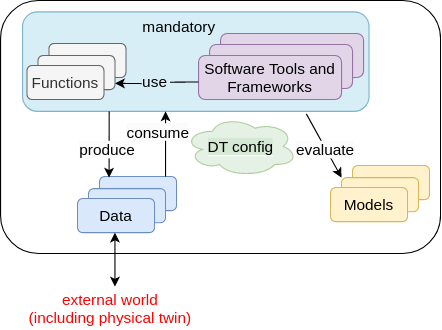
A digital twin can only be created by linking assets in a meaningful way. This relationship can be expressed using the following mathematical equation:
where D denotes data, M denotes models, F denotes functions, T denotes tools, denotes DT configuration, and is a symbolic notation for a digital twin itself. The expression denotes composition of a DT from D, M, T, and F assets. The indicates zero or more instances of an asset, and indicates one or more instances of an asset.
The DT configuration specifies the relevant assets to use and the potential parameters to be set for these assets. When a DT requires RabbitMQ, InfluxDB, or similar services supported by the platform, the DT configuration must include access credentials for these services.
This generic DT definition is based on DT examples observed in practice. Deviation from this definition is permissible. The only requirement is the ability to execute the DT from either the command line or a graphical desktop environment.
Tip
For users new to Digital Twins who may not have distinct digital twin assets but rather a single directory containing all components, it is recommended to upload this monolithic digital twin into the digital_twin/your_digital_twin_name directory.
Example
The Examples repository contains a co-simulation setup for a mass-spring-damper system. This example demonstrates the application of co-simulation techniques for digital twins.
The file system contents for this example are:
The workspace/data/mass-spring-damper/ directory contains input and
output data for the mass-spring-damper digital twin.
The two FMU models required for this digital twin are located in the
models/ directory.
The co-simulation digital twin requires the Maestro co-simulation
orchestrator. As this is a reusable asset for all
co-simulation-based DTs, the tool has been placed in the
common/tools/ directory.
The digital twin configuration is specified in the
digital twins/mass-spring-damper directory. The co-simulation configuration
is defined in two JSON files: cosim.json and time.json.
Documentation for the digital twin can be placed in
digital twins/mass-spring-damper/document.md.
The launch program for this digital twin is located in
digital twins/mass-spring-damper/lifecycle/execute. This launch program executes
the co-simulation digital twin, which runs until completion and
then terminates. The programs in digital twins/mass-spring-damper/lifecycle are
responsible for lifecycle management of this digital twin.
The lifecycle page provides further explanation of these programs.
Execution of a Digital Twin
A frequent question arises on the run time characteristics of a digital twin. The natural intuition is to say that a digital twin must operate as long as its physical twin is in operation. If a digital twin runs for a finite time and then ends, can it be called a digital twin? The answer is a resounding YES. The Industry 4.0 usecases seen among SMEs have digital twins that run for a finite time. These digital twins are often run at the discretion of the user.
Execution of this digital twin involves the following steps:
- Navigate to the Workbench tools page of the DTaaS website and open VNC Desktop. This opens a new tab in the browser.
- A page with VNC Desktop and a connect button is displayed. Click on Connect to establish a connection to the Linux Desktop of the workspace.
- Open a Terminal (the black rectangular icon in the top left region of the tab) and enter the following commands.
-
Download the example files by following the instructions provided in the examples overview.
-
Navigate to the digital twin directory and execute:
The final command executes the mass-spring-damper digital twin and stores
the co-simulation output in data/mass-spring-damper/output.