Install DTaaS on localhost with GitLab Integration
This installation is suitable for single users intending to use DTaaS on their own computers.
The installation instructions provided in this document are appropriate for running the DTaaS on localhost served over HTTPS connection. The intention is to integrate GitLab into DTaaS so that both are running on localhost.
If GitLab running on localhost is not required, the simpler localhost setup should be used.
Design
An illustration of the docker containers used and the authorization setup is presented here.
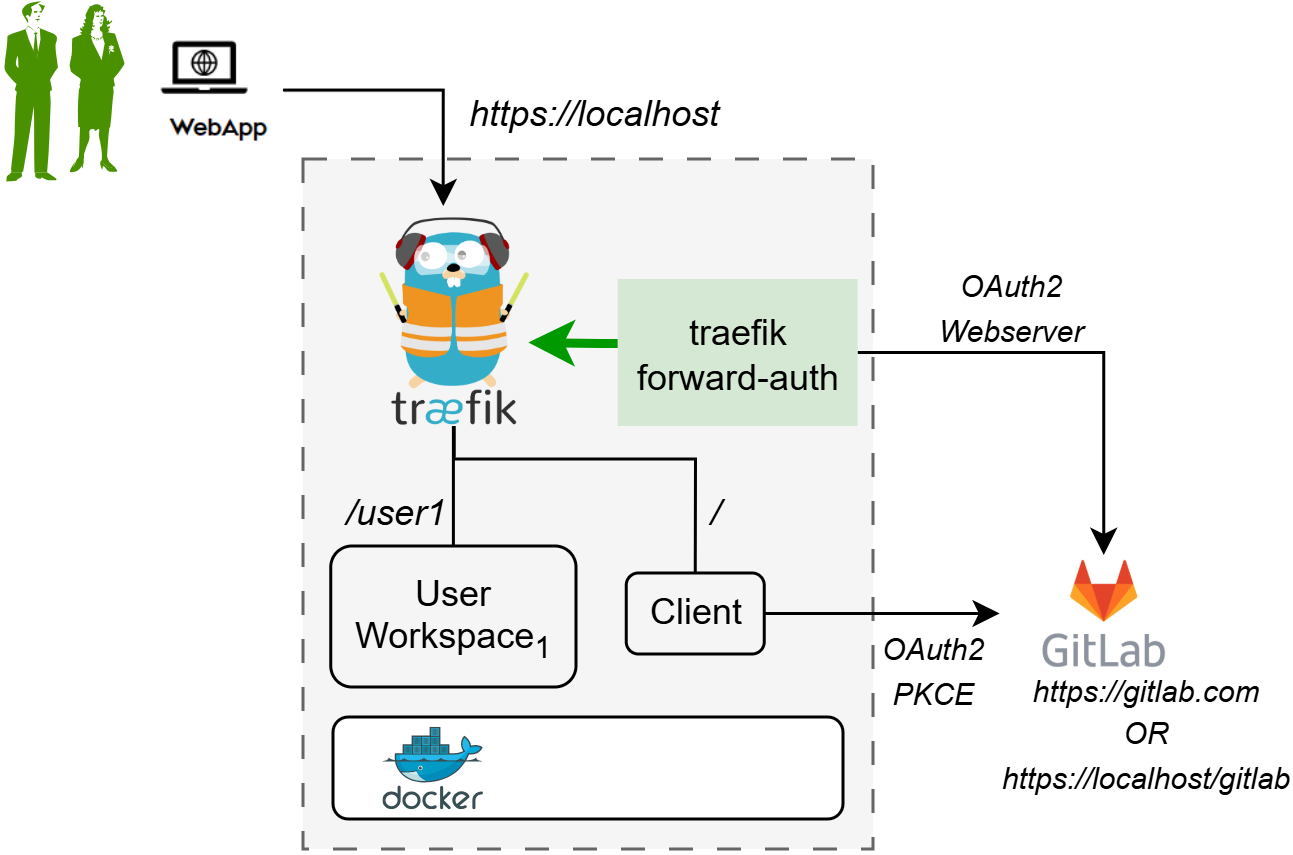
🗒️ The text starting with / at the beginning indicates the URL route
at which a certain service is available. For example, user workspace
is available at https://localhost/user1.
Requirements
The installation requirements to run this docker version of the DTaaS are:
- docker desktop / docker CLI with compose plugin
- mkcert
Download Package
The software is available as a zip package. The package should be downloaded and unzipped. A new DTaaS-v0.8.0 folder is created. The remaining installation instructions assume the use of a Windows/Linux/MacOS terminal in the DTaaS-v0.8.0 folder.
 file pathnames
- The filepaths shown here follow POSIX convention. The installation procedures also work with Windows paths.
- The description below refers to filenames. All the file paths mentioned below are relatively to the top-level DTaaS directory.
Configure
Create User Workspace
The existing filesystem for installation is configured for user1.
A new filesystem directory must be created for the selected user.
The following commands should be executed from the top-level directory of the DTaaS project.
where username is the selected username to be created (in next steps) on GitLab running at https://localhost/gitlab.
Obtain TLS / HTTPS Certificate
mkcert can be used to generate
TLS certificates following
this guide.
The certificates should be generated for localhost.
The names of the certificates must be fullchain.pem and privkey.pem.
The fullchain.pem corresponds to public certificate and
the privkey.pem corresponds to private key.
Add TLS Certificates to Traefik
Copy the two certificate files into:
deploy/docker/certs/localhost/fullchain.pemdeploy/docker/certs/localhost/privkey.pem
Traefik will run with self-issued certificates if the above two certificates are either not found or found invalid.
Docker Compose
The docker compose configuration is in deploy/docker/.env.local;
it is a sample file.
It contains environment variables
that are used by the docker compose files.
It can be updated to suit your local installation scenario.
It contains the following environment variables.
All fields should be edited according to the specific deployment case.
| URL Path | Example Value | Explanation |
|---|---|---|
| DTAAS_DIR | '/Users/username/DTaaS' | Full path to the DTaaS directory. This is an absolute path with no trailing slash. |
| username1 | 'user1' | Your GitLab username |
Important points to note:
- The path examples given here are for Linux OS. These paths can be Windows OS compatible paths as well.
- The client configuration file is located at
deploy/config/client/env.local.js. Edit the URLs in this file by replacinghttpwithhttps. Beyond this, it is not necessary to modify this file.
Run
Start DTaaS to Integrate GitLab
The commands to start and stop the appliation are:
To restart only a specific container, for example client
Start GitLab
Use the instructions provided in GitLab integration to bring up GitLab on localhost and the GitLab service will be available at https://localhost/gitlab
Register OAuth 2.0 Application
The frontend website requires OAuth 2.0 application registration on the integrated GitLab. The details of OAuth 2.0 application for the frontend website are available in client docs.
The default OAuth 2.0 client application provided in env.local.js functions correctly.
However, when running an
integrated GitLab instance,
this application needs to be created on GitLab running at https://localhost/gitlab.
https://localhost/Library should be used as the Callback URL (REACT_APP_REDIRECT_URI).
The GitLab OAuth 2.0 provider documentation provides further guidance on creating this OAuth 2.0 application.
Update Client Website Configuration
Replace the contents of deploy/config/client/env.local.js with
the following.
And then update OAuth 2.0 client application ID (REACT_APP_CLIENT_ID) with that
of the newly registered OAuth 2.0 application.
Restart DTaaS Client Website
To update the client website configuration, run
Use
The application will be accessible at: https://localhost from a web browser. Users can sign in using their https://localhost/gitlab account.
All the functionality of DTaaS should be available through the single page client.
Limitations
The library microservice is not included in the localhost installation scenario.
Docker Help
The commands to start and stop the appliation are:
To restart only a specific container, for example client
References
Image sources: Traefik logo, ml-workspace, reactjs, GitLab