DTaaS on Single Vagrant Machine
These are installation instructions for running DTaaS platform inside one Vagrant Virtual Machine. The setup requires a machine that can allocate 16GB RAM, 8 vCPUs and 50GB Hard Disk space to the vagrant box.
Create Base Vagrant Box
Create the dtaas Vagrant box.
An SSH key pair - vagrant and vagrant.pub - will have been created.
The vagrant file is the private SSH key and is needed for the next steps.
The vagrant SSH private key should be copied into the current directory
(deploy/vagrant/single-machine).
This key is useful for logging into the vagrant
machines created for two-machine deployment.
Target Installation Setup
The goal is to use the dtaas Vagrant box to install the DTaaS platform on one single vagrant machine. A graphical illustration of a successful installation is presented here.
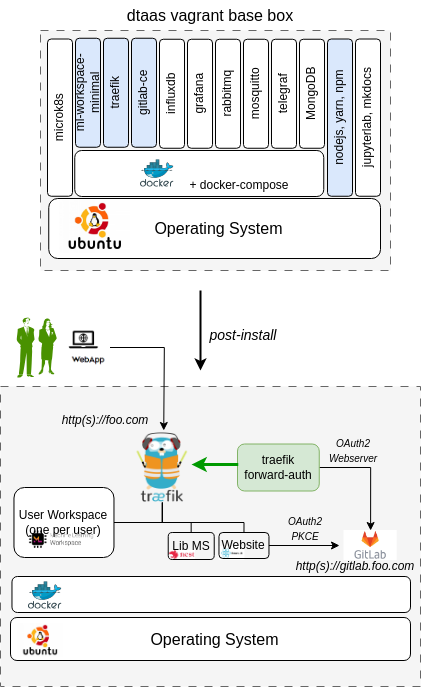
There are many unused software packages/docker containers within the dtaas base box. The used packages/docker containers are highlighed in blue color.
Tip
The illustration shows hosting of GitLab on the same
vagrant machine with
Configure Server Settings
A dummy foo.com URL has been used for illustration.
This should be changed to the actual unique website URL.
The following steps should be performed to make this installation work in the local environment.
Update the Vagrantfile. The fields to update are:
- Hostname (
node.vm.hostname = "foo.com") - MAC address (
:mac => "xxxxxxxx"). This change is required if you have a DHCP server assigning domain names based on MAC address. Otherwise, you can leave this field unchanged. - Other adjustments are optional.
Installation Steps
Execute the following commands from terminal
Set a cronjob inside the vagrant virtual machine to remote the conflicting default route. Download the route script and run the following command.
Please follow the instructions of regular server installation setup to complete the installation.
References
Image sources: Ubuntu logo, Traefik logo, ml-workspace, nodejs, reactjs, nestjs