Settings
Settings are important both during initial DTaaS setup and during use when working with different configurations. All the most important settings have been consolidated on one page for both of these scenarios.
⚙️ Changing Settings
The parameters used for sending and receiving information to the storage and execution services (e.g., GitLab) may need adjustment to match the infrastructure. Navigation to Account using the top-right purple 🅰️ icon followed by selection of the Settings tab displays the following adjustable parameters:
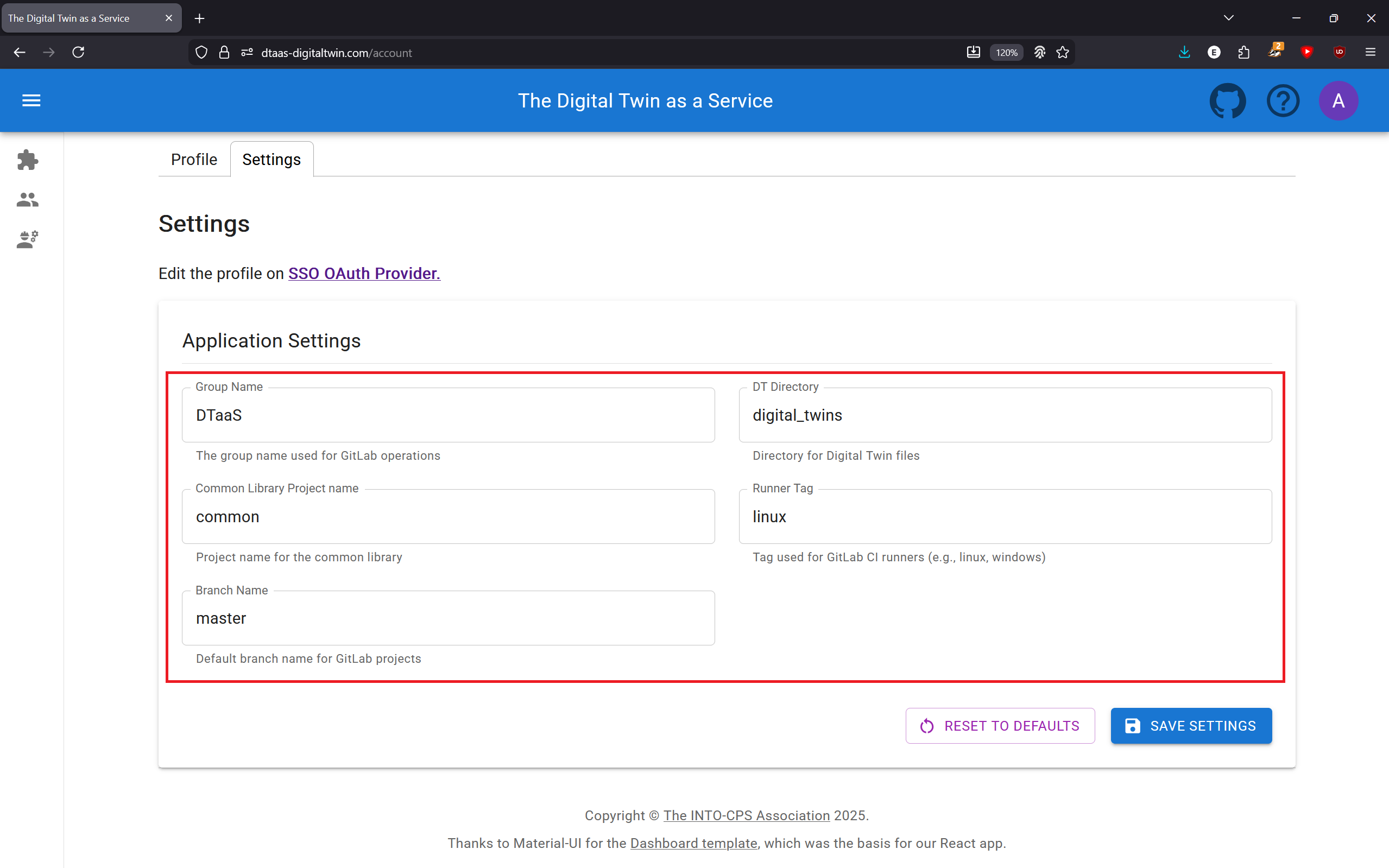
There are two categories of settings - Application Settings, and Measurement Settings. Application settings are used for DevOps features while measurement settings are used for benchmarking the DevOps features.
Following is a description of what each parameter does.
Application Settings
Group Name
The Group Name denotes the highest level of organizational abstraction concerned with on the storage service, namely Groups. A GitLab group is required to use the DTaaS. Within the group, projects reside, which must match the usernames of system users. More information about the file organisation is available. This parameter must be set to the case-insensitive name of the group.
Default: DTaaS
Common Library Project name
One project within the group serves as the Digital Twins Library. Through the DTaaS, the files inside the Library are accessible to all users and can be copied to individual user projects as needed. This parameter specifies the project name of the Library, and must match that name.
Default: common
DT Directory
Within the common library and user projects, files related to Digital Twins are stored within a designated folder. This is the name chosen for that folder.
Default: Digital_Twins
Branch Name
This parameter determines which branch to search for data (Twins, Functions, etc.) within user and library projects. This parameter also determines which branch's Digital Twins are executed.
Default: master
Runner Tag
The (GitLab) runners responsible for executing Digital Twin code must be associated with a tag. Only one tag can be specified, and it cannot be left blank, or the job of running the twin will not be processed. This is a limitation of the DTaaS.
Default: linux
Measurement Settings
Trial Number
The number of times a test is run during benchmark runs.
Default: 3
Measurement Secondary Runner Tag
Some benchmark runs require two GitLab runners. The Runner Tag in Application Settings points to first runner, while Measurement Secondary Runner Tag points to the second runner.
Default: windows
Primary Digital Twin
The drop-down menu lists all the available digital twins from which the first digital twin is to be selected.
Default: first digital twin in alphabetical order
Secondary Digital Twin
The drop-down menu lists all the available digital twins from which the second digital twin is to be selected.
Default: second digital twin in alphabetical order
💾 Saving and Resetting Changes
When satisfied with the changes, SAVE SETTINGS must be pressed for them to persist after leaving the Settings page. If a mistake was made, the settings can be reset to their default values by pressing the RESET TO DEFAULTS button. The reset values are saved automatically, so additional saving is not required. The Saving and Resetting buttons on the page:
The default values can be found and modified in the code if needed.
Return to the DevOps pages (i.e., Digital Twin Preview) is now possible. Refreshing ensures fresh data from the remote repository is fetched, and the Digital Twins should be visible, ready to be executed, edited, and shared.
💭 Summary
This document has described how to edit the settings for initializing the DTaaS to a project and for continuous use (i.e., modifying Runner Tag and Branch). The need to save changes and how to return to default values if a mistake is made have been discussed.