Workspace
This page walks through the website of the workspace software platform with screenshots. A short screen recording is also available.
The user workspace in DTaaS is a personal Linux environment
given to each registered user.
This page uses https://intocps.org as an example base URL.
Replace it with the URL of your installation.
Visit the Workspace Installation
URL:
https://intocps.org(specified inconfig/client.jsfile)
Start by visiting the website of the DTaaS installation you are registered with.
Redirected to Authorization Provider
URL:
https://intocps.org/auth/realms/dtaas/xxxx(specified inconfig/.envfile)
The browser redirects to the Keycloak authorization page for the DTaaS Workspace.
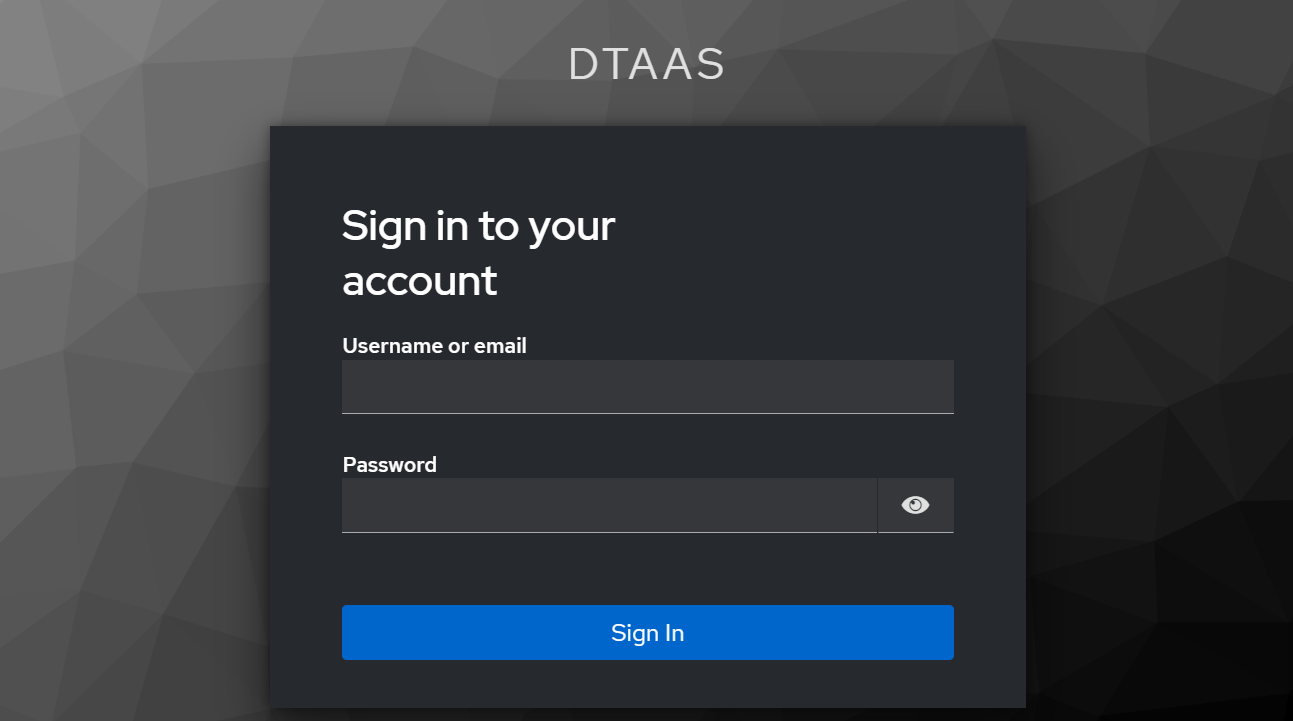
Enter your email or username and password.
The browser then redirects to the application page.
After successful authentication, the browser returns to the sign-in page of the DTaaS website.
URL:
https://intocps.org
The DTaaS website adds a second layer of security with the OIDC third-party authorization protocol. Only users with an active account at the selected OIDC provider can access the installation. This installation uses Keycloak as the OIDC provider. The Sign In button on the sign-in page starts the authorization.
After successful authorization, the browser opens the Library page of the DTaaS website.
URL:
https://intocps.org/library/xxxx
The application bar at the top of every page shows the DTaaS logo and title in the middle. On the right are three buttons. The GitHub icon opens the DTaaS code repository and the question-mark icon opens this documentation. The round avatar, which shows your profile picture or the first letter of your username, opens a menu with Account and Logout. The Account page has a Settings tab where you can change settings.
Menu Items
The menu is a sidebar on the left of the page. By default it is collapsed to a narrow rail that shows only the icons. Click the three horizontal bars icon in the top-left corner to expand it.
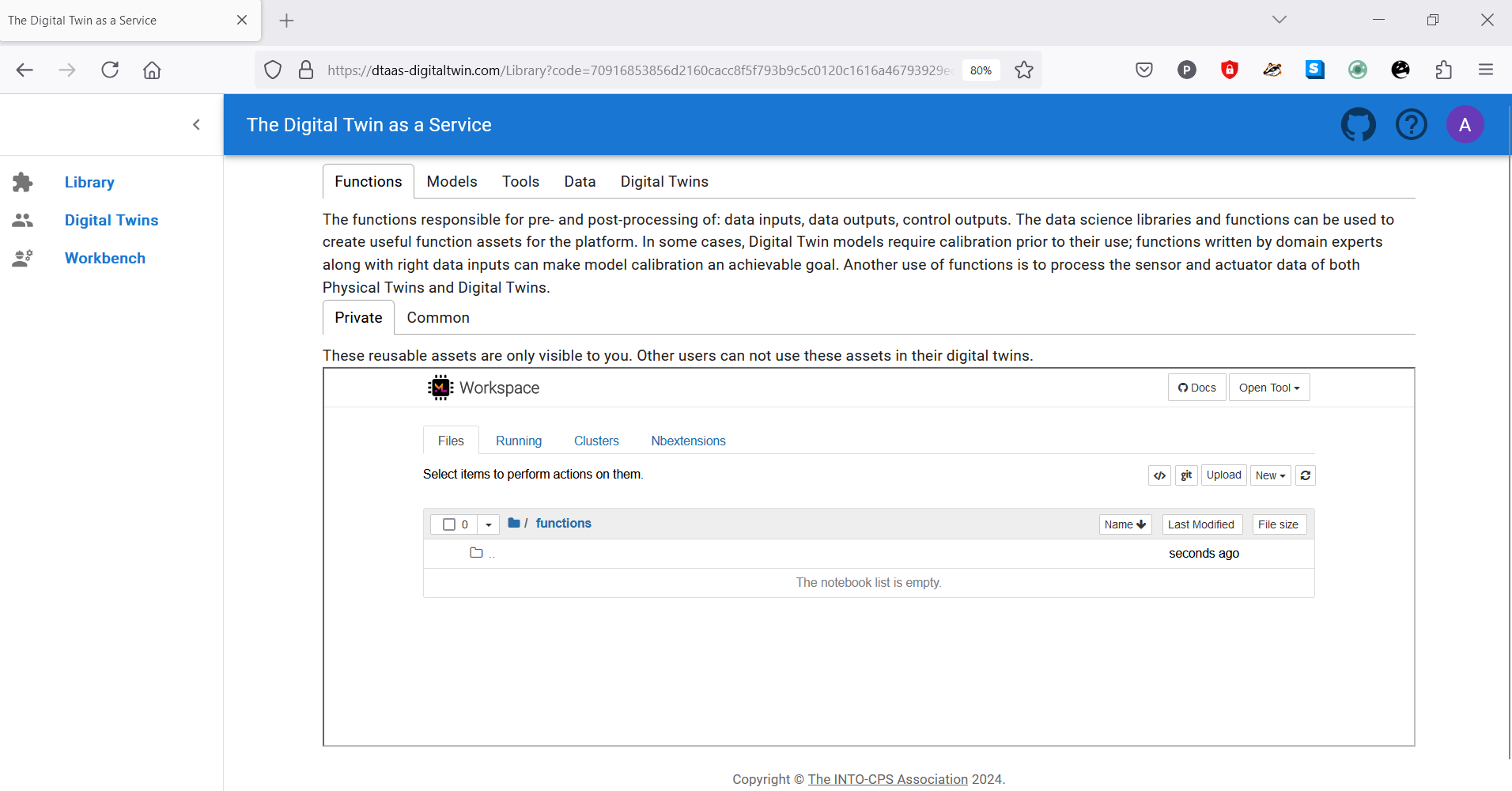
The menu items are described on the website page.
Library Page
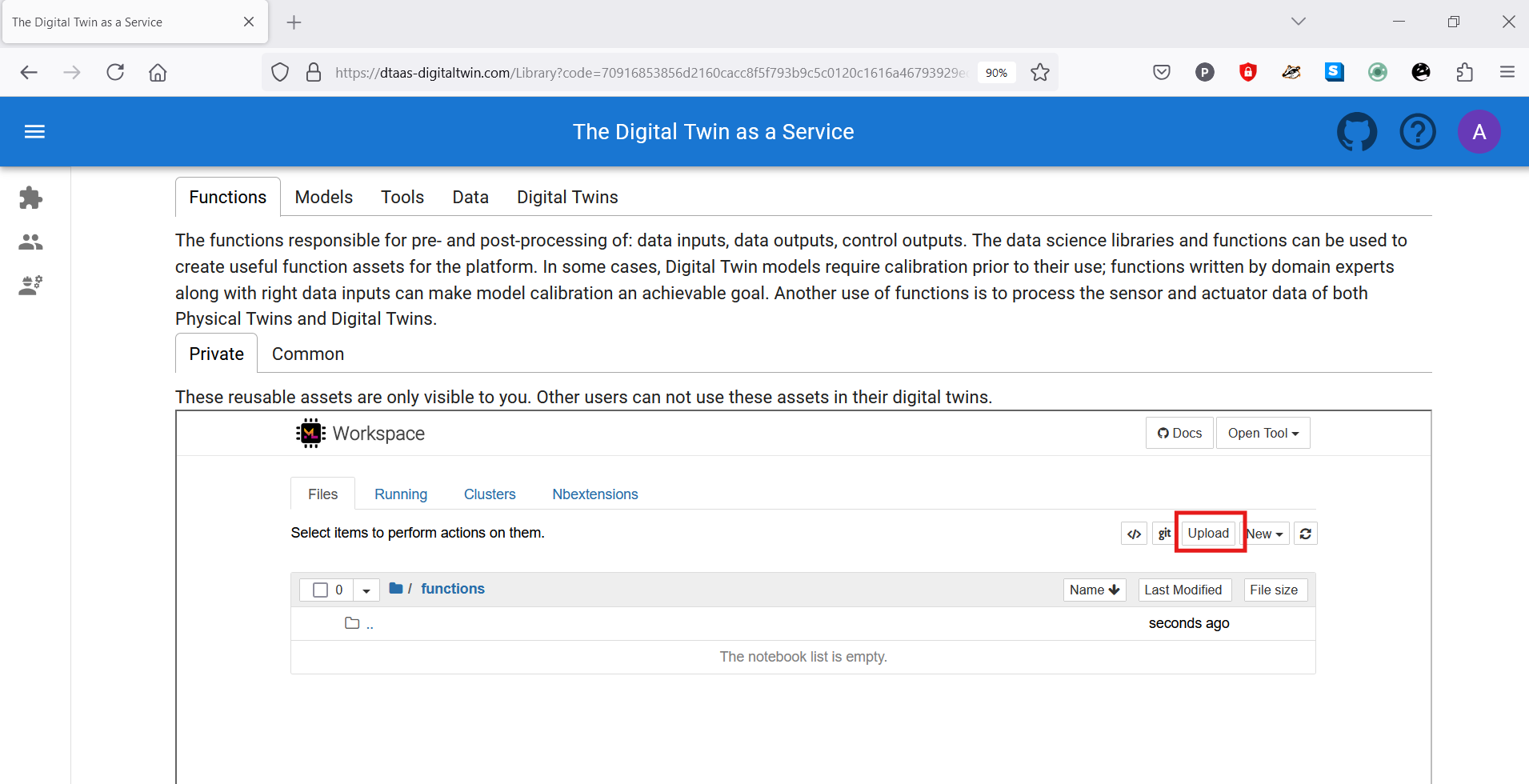
The page has five tabs, one for each type of digital twin asset. Each tab has a description of its asset type.
Functions
The functions responsible for pre- and post-processing of data inputs, data outputs and control outputs. The data science libraries and functions can be used to create useful function assets for the platform. In some cases, Digital Twin models require calibration prior to their use; functions written by domain experts along with the right data inputs can make model calibration achievable. Functions can also process the sensor and actuator data of both Physical Twins and Digital Twins.
Models
The model assets describe different aspects of Physical Twins and their environment, at different levels of abstraction. Therefore, it is possible to have multiple models for the same Physical Twin. For example, a flexible robot used in a car production plant may have structural models that are useful for tracking the wear and tear of parts. The same robot can have behavioural models describing the safety guarantees provided by the robot manufacturer. The same robot can also have functional models describing the part manufacturing capabilities of the robot.
Tools
The software tool assets are software used to create, evaluate and analyse models. These tools run on top of a computing platform, i.e., an operating system, a virtual machine such as the Java virtual machine, or inside docker containers. Tools tend to be platform specific, which makes them less reusable than models. A tool can be packaged to run on a local or distributed virtual machine environment, so the most suitable execution environment can be selected for a Digital Twin. Most models require tools to evaluate them in the context of data inputs. In some cases executable packages are run as binaries in a computing environment. Each of these packages is a pre-packaged combination of models and tools that makes a ready-to-use Digital Twin.
Data
The data sources and sinks available to digital twins. Typical examples of data sources are sensor measurements from Physical Twins and test data provided by manufacturers for calibration of models. Typical examples of data sinks are visualisation software, external users and data storage services. There are also special outputs, such as events and commands, which are akin to control outputs from a Digital Twin. These control outputs usually go to Physical Twins, but they can also go to another Digital Twin.
Digital Twins
These are ready-to-use digital twins created by one or more users. These digital twins can be reconfigured later for specific use cases.
Each asset tab has two sub-tabs: Private and Common. Private library assets are visible only to the signed-in user. Common library assets are available to all users.
The assets page explains where to place reusable assets of each type and the directory structure on the server.
Note
Assets (files) can be uploaded using the upload button.
Note
The file manager is based on Jupyter Notebook, and all tasks available in Jupyter Notebook can be performed here.
Digital Twins Page
URL:
https://intocps.org/digitaltwins
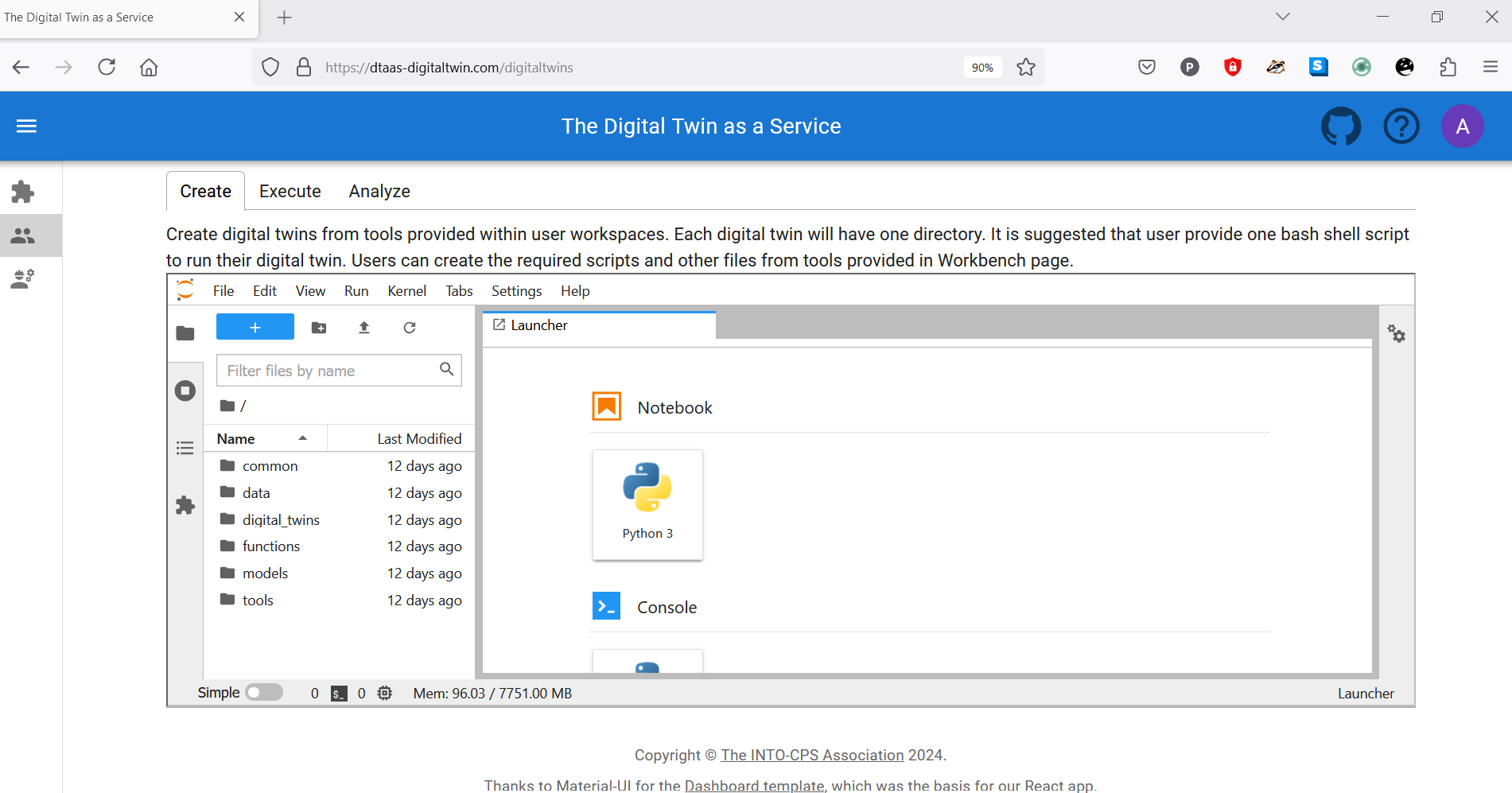
The Digital Twins page has three tabs, Create, Execute and Analyze, and each tab shows Jupyter Lab below its description. The descriptions suggest tasks for these lifecycle phases of a digital twin. The lifecycle phases of digital twin page explains them further.
Create
Create digital twins from tools provided within user workspaces. Each digital twin has one directory. Users are advised to provide one bash shell script to run their digital twin. Users can create the required scripts and other files with the tools on the Workbench page.
Execute
Digital twins are executed from within user workspaces. The given bash script is executed from the digital twin directory. Terminal-based digital twins can be executed from VSCode and graphical digital twins can be executed from VNC GUI. The results of execution can be placed in the data directory.
Analyze
Analysing a digital twin requires running the digital twin script from the user workspace. Analysis scripts process the execution results placed in the data directory and put their results back in the data directory. These scripts can be executed from VSCode, or from VNC GUI when they produce graphical results.
Note
The reusable assets (files) shown in the file manager are also available in Jupyter Lab. Jupyter Lab also has a git plugin for linking files with external git repositories.
Workbench
URL:
https://intocps.org/workbench
The Workbench Tools page shows a card for each tool running in your workspace. A standard workspace has four tools:
| Tool | Description |
|---|---|
| Desktop | XFCE-based Linux desktop environment in the browser |
| VSCode | Browser-based VS Code editor (code-server) |
| JupyterLab | Interactive notebook environment |
| Jupyter Notebook | Classic Jupyter interface |
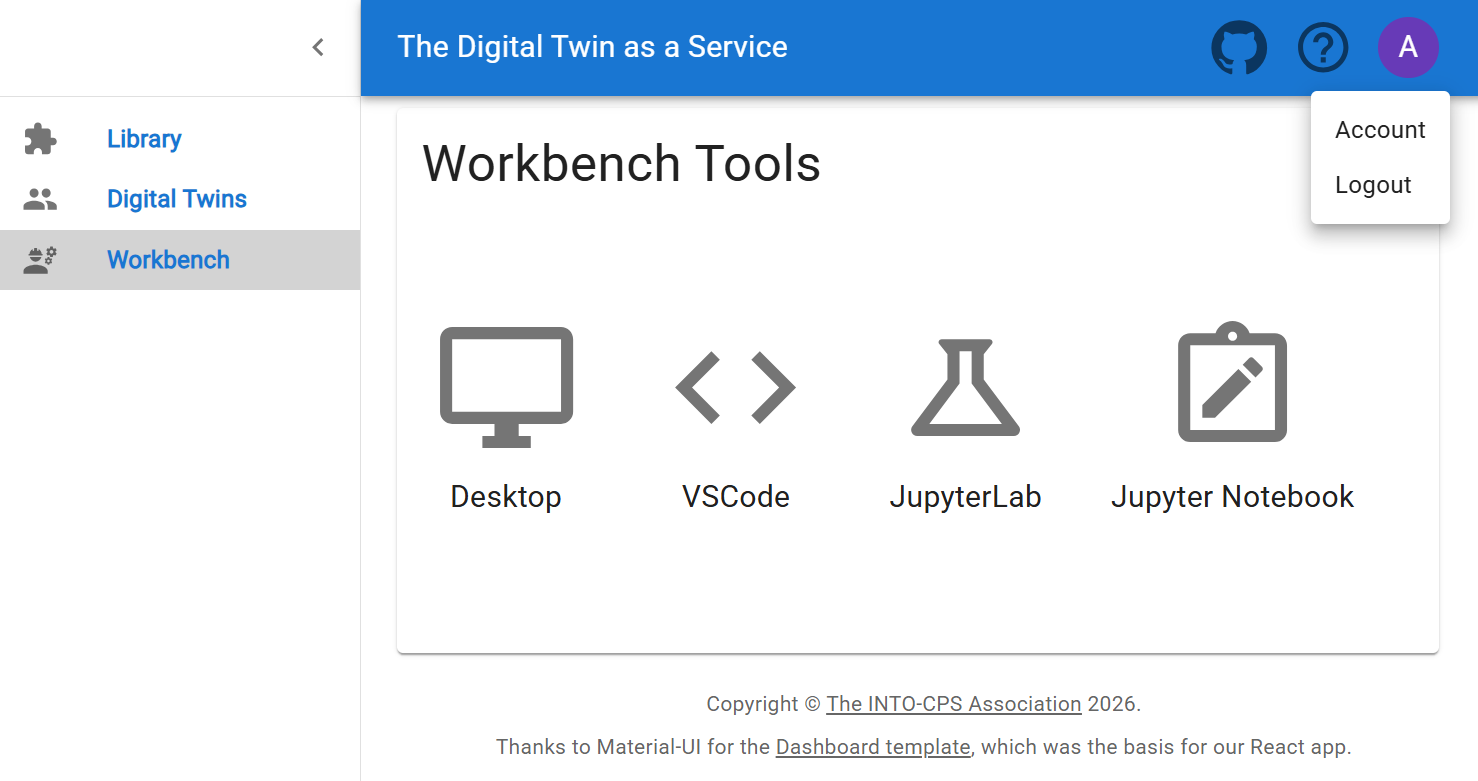
Each card opens its tool in a new browser tab. The sections below show the page each tool opens.
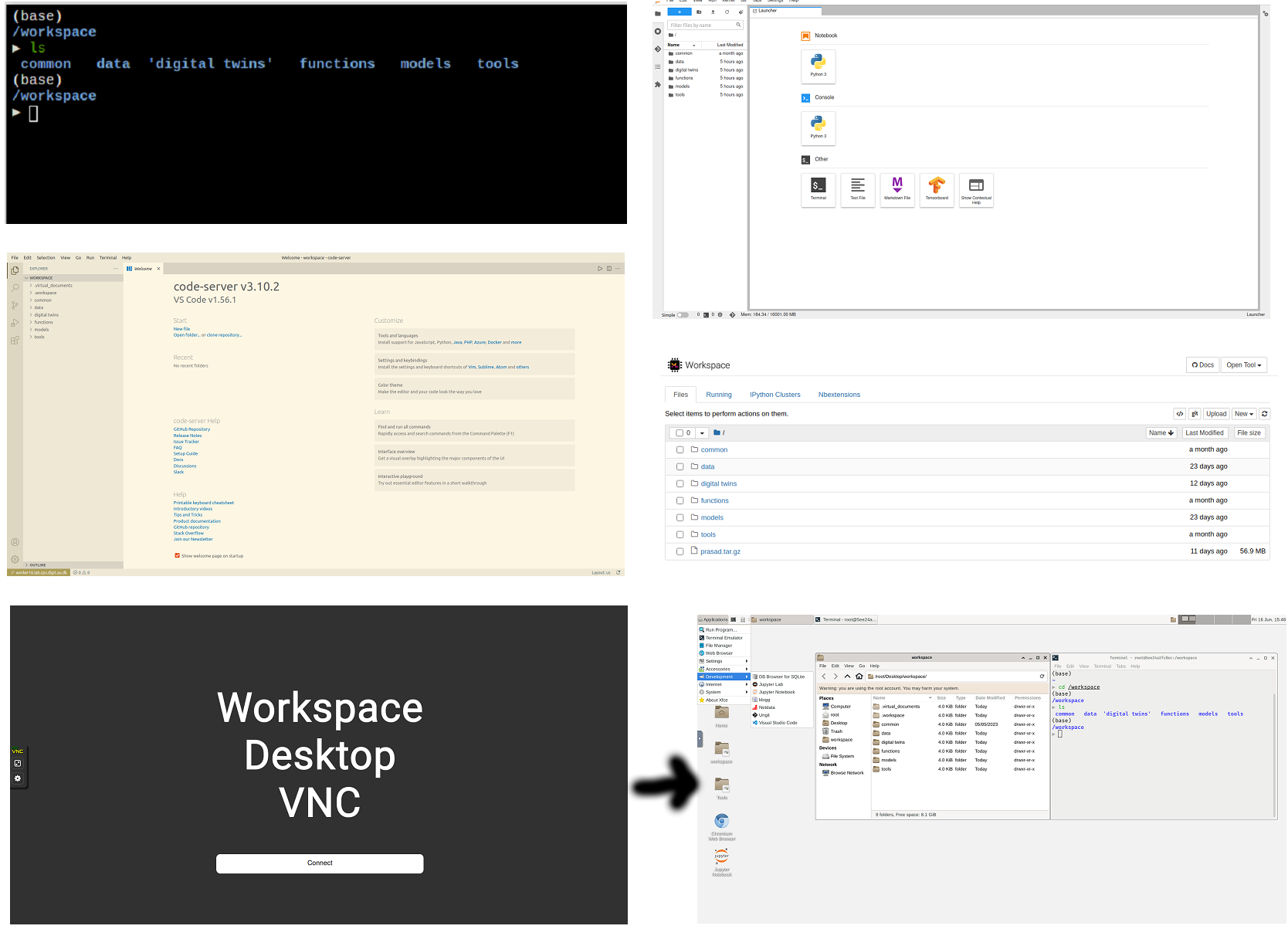
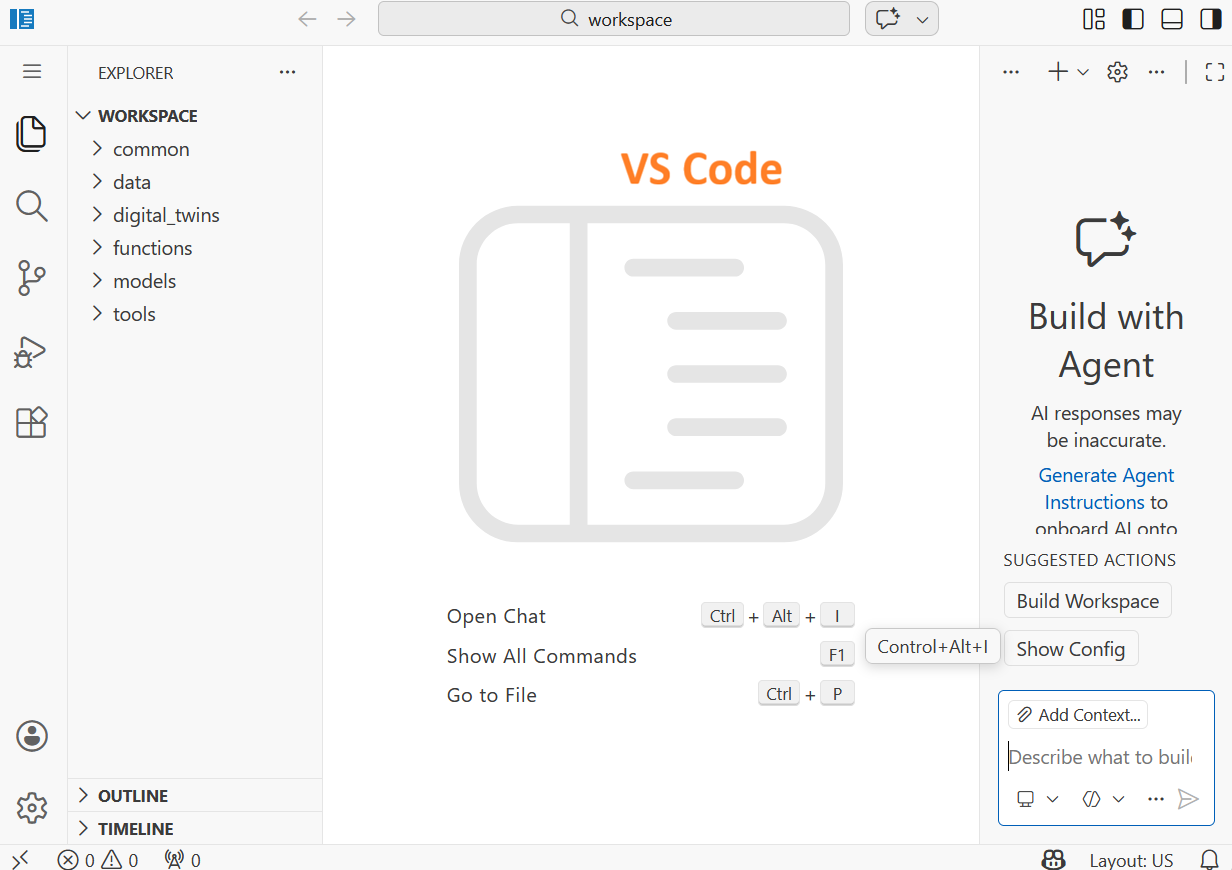
VS Code Workspace
The VS Code interface has:
- File explorer for navigating the workspace
- Integrated terminal for running commands
- Extensions for Python, Markdown, and other languages
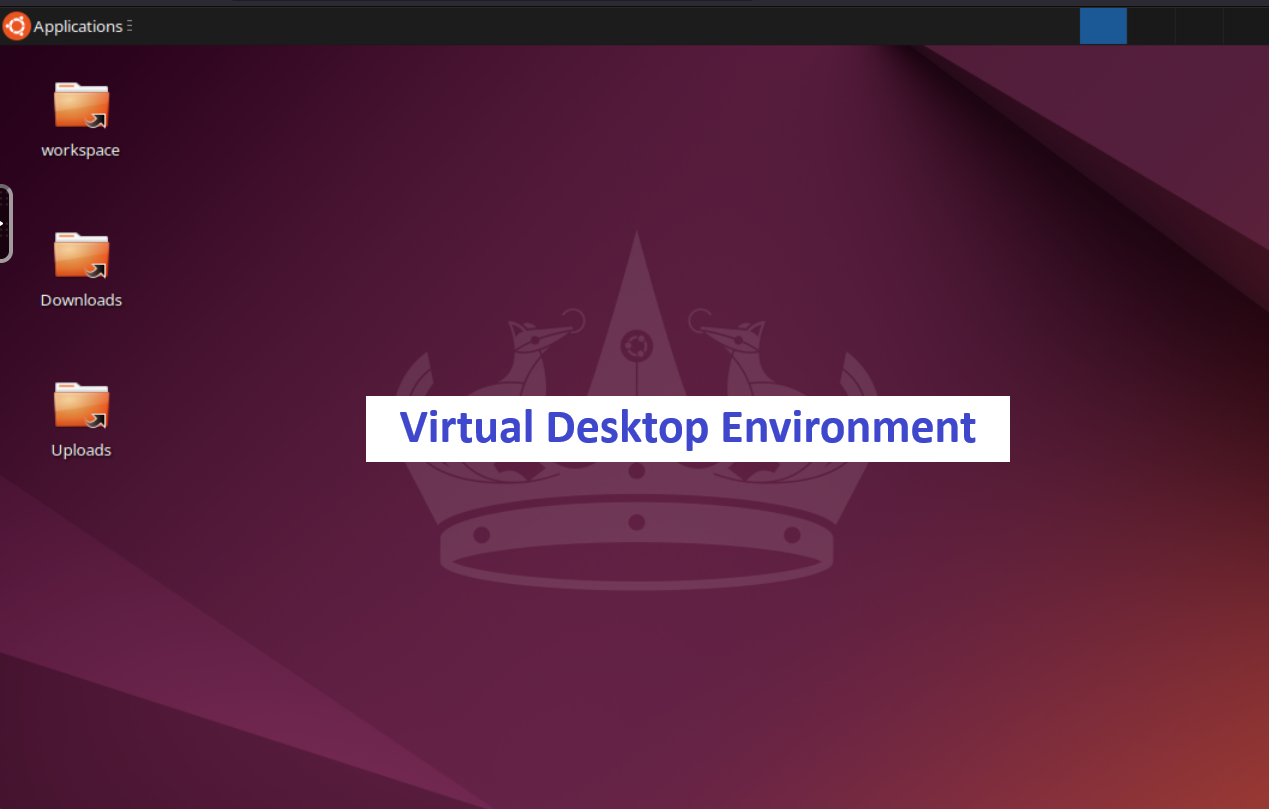
XFCE Desktop
The XFCE desktop is a full graphical Linux environment in the browser. Use it to run GUI-based tools that cannot be used from a terminal alone.
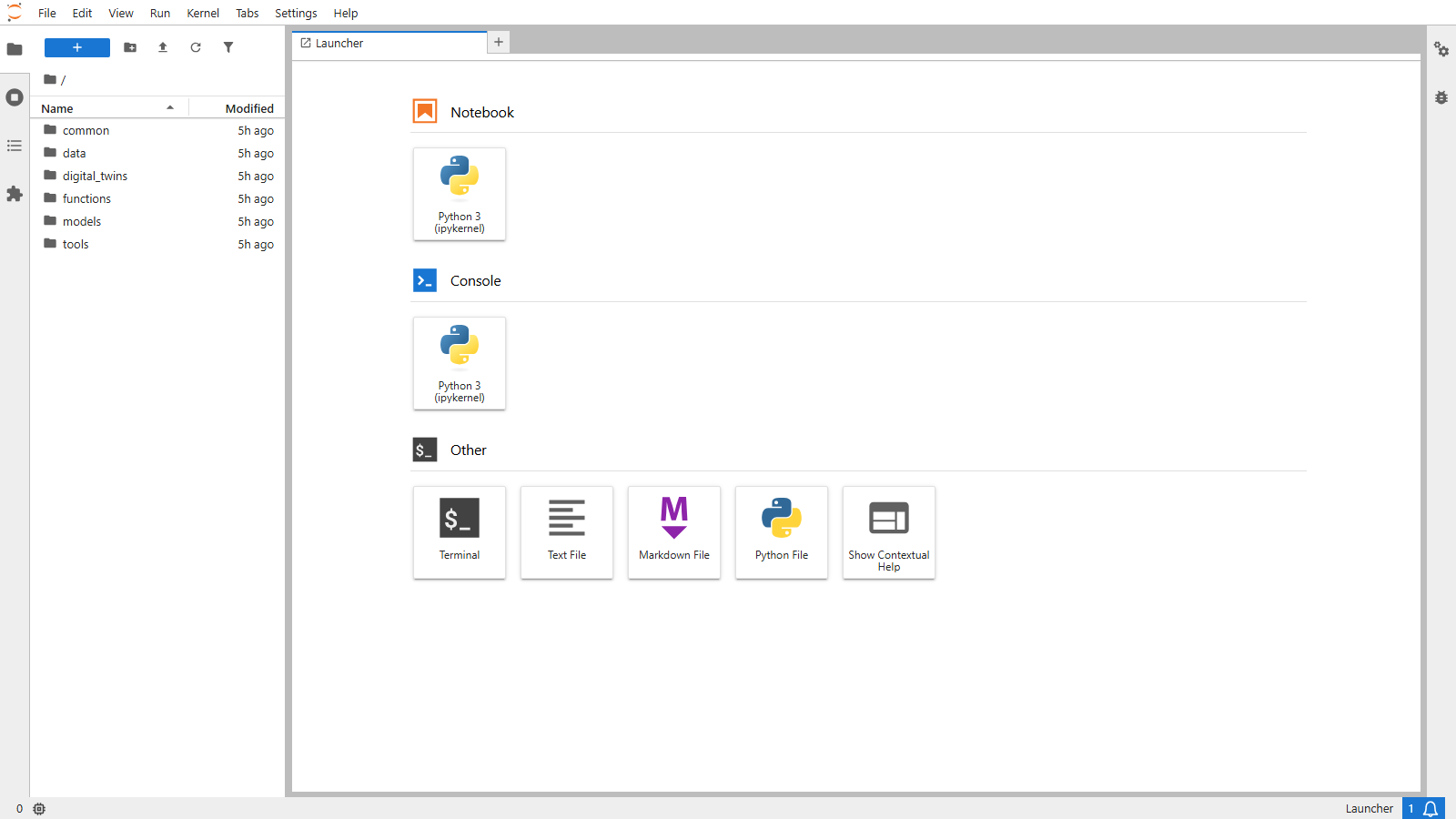
JupyterLab
JupyterLab combines notebooks, terminals and a file browser in one window. The Digital Twins page embeds the same interface.
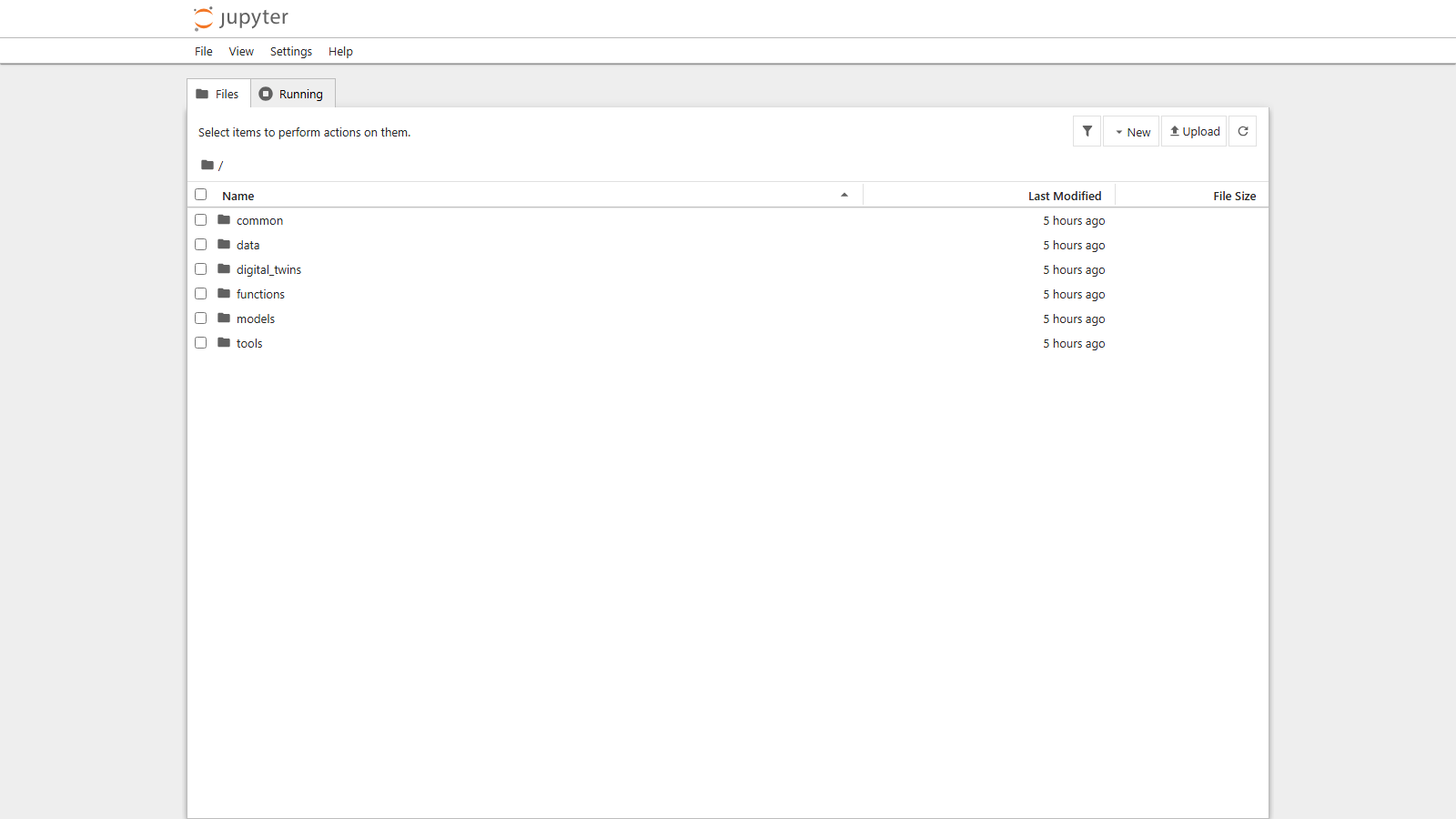
Jupyter Notebook
The classic notebook interface opens on the file list of the workspace. The Library page embeds the same interface.
Workspace File System
Each user's workspace container mounts two directories:
Files in /workspace/ are private to each user.
Files in /workspace/common/ are shared across all users.
Administrators can mount /workspace/common as read-only in the
compose configuration.
Installing Software
Users can install more software in their workspace from the XFCE Desktop, Jupyter Lab or VSCode:
Installed software is private to each user's workspace and persists across sessions.
Running Digital Twins
To execute a digital twin stored in /workspace/digital_twins/, run its
lifecycle scripts in the terminal:
Summary
The DTaaS workspace gives each user a private, persistent Linux environment with a desktop, a terminal and development tools in the browser. Users can install software, run digital twins and develop new DT assets in their workspace.