Auth Microservice
This page describes the workflow and implementation of the DTaaS Auth Microservice. Read the System Design and the OAuth 2.0 summary first.
Workflow
User Identity using OAuth 2.0
This discussion uses the following constants:
- CLIENT ID: the OAuth 2.0 Client ID of the Auth MS.
- CLIENT SECRET: the OAuth 2.0 Client Secret of the Auth MS.
- REDIRECT URI: the URI to which the user is redirected after approving sharing of information with the client.
- STATE: a random string that identifies a specific "GET authcode" request.
- AUTHCODE: the single-use authorization code that the OAuth 2.0 provider (the GitLab instance) returns in response to "GET authcode" after the user approves.
Assume also that DTaaS uses a dedicated GitLab instance at https://gitlab.intocps.org (instead of https://intocps.org).

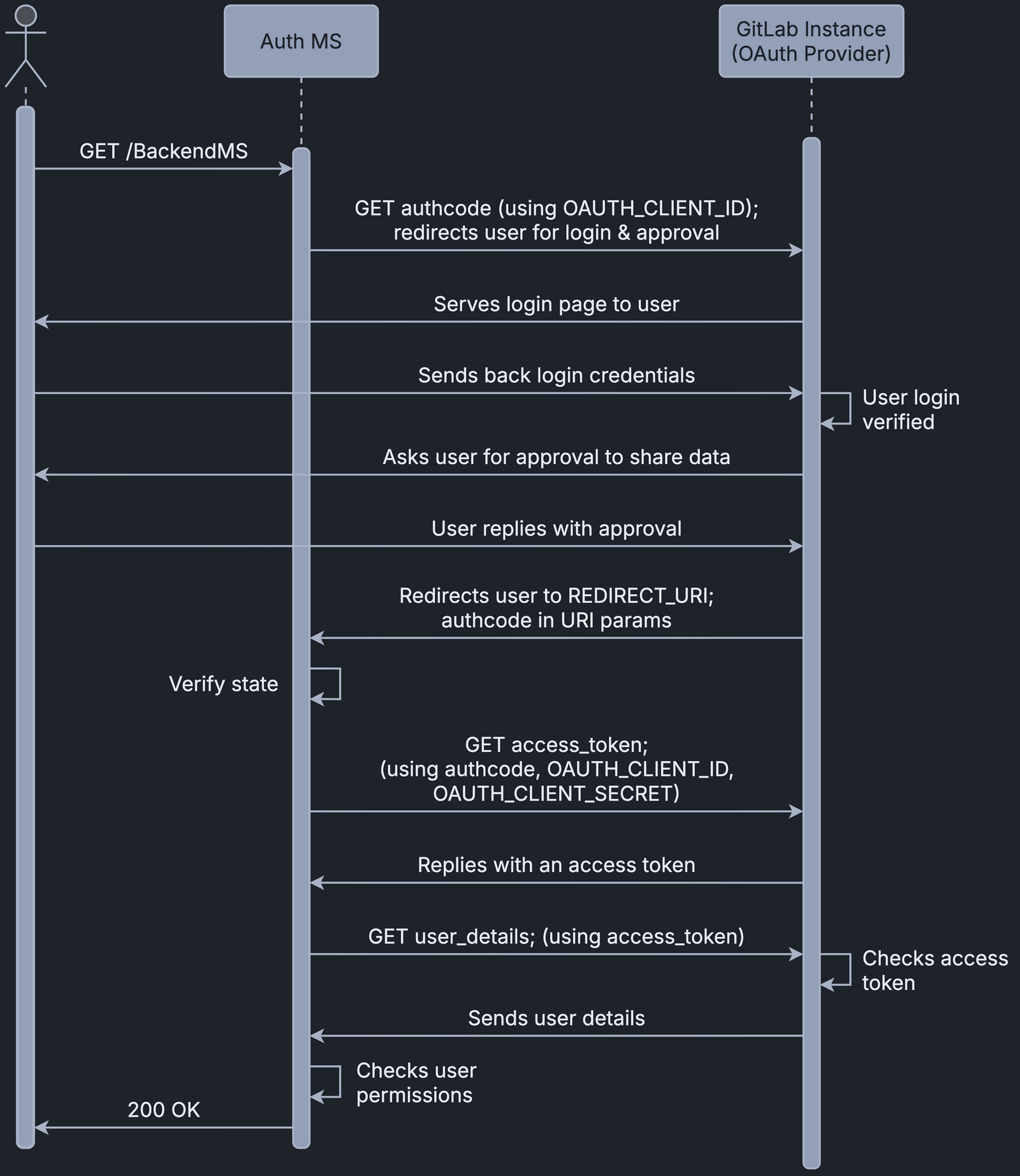
A successful OAuth 2.0 workflow has the following steps:
- The user requests a resource, say GET/BackendMS.
- The Auth MS intercepts this request and starts the OAuth 2.0 process.
- The Auth MS sends an authorization request to the GitLab instance.
The diagram abbreviates this request as GET/authcode. The actual request (a user redirect) looks like:
Here gitlab.intocps.org/oauth/authorize is the GitLab endpoint that
handles authorization code requests.
The query parameters include the expected response type, which is fixed
as code, meaning that an authorization code is expected. The other
parameters are the client ID, the redirect URI, the scope (read_user
here) and the state, the random string that identifies the request.
-
The OAuth 2.0 provider redirects the user to the login page, where the user logs into their protected account with their username or email ID and password.
-
The OAuth 2.0 provider then asks the user to approve or deny sharing the requested information with the Auth MS. The user must approve for authentication to succeed.
-
After approval, the GitLab instance redirects the user to the REDIRECT URI, in this form:
The REDIRECT URI is the one set when the OAuth 2.0 client was initialised, which is also the one the Auth MS sent in the "GET authcode" request. The GitLab instance adds the query parameters: the AUTHCODE that the Auth MS requested, and the STATE, which is the same random string as in the "GET authcode" request.
-
The Auth MS reads these query parameters and checks that STATE matches the random string it sent in the "GET authcode" request. This confirms that the AUTHCODE answers its own request.
-
The Auth MS exchanges the single-use AUTHCODE for an access token. The access token can be used more than once but expires after a set time. For the exchange, the Auth MS makes another request to the GitLab instance. The sequence diagram abbreviates it as GET/access_token. The actual request is:
For most OAuth 2.0 providers, exchanging an authorization code for a token
is a POST request. The https://gitlab.intocps.org/oauth/token endpoint
handles token exchange requests. The POST request carries the client ID,
the client secret, the AUTHCODE and the redirect URI. The grant type is
always authorization_code, which says that an authorization code is being
exchanged for an access token.
- The GitLab instance exchanges a valid AUTHCODE for an access token and sends it to the Auth MS. An example response:
The access_token field holds the string to use as an access token in
the headers of requests for user information. The token_type field is
usually bearer. The expires_in field gives the number of seconds the
token stays valid, and created_at is the Unix timestamp at which it was
created. The refresh_token field holds a string that can extend the
access token's lifetime, but the Auth MS does not use it: when an access
token expires, the Auth MS requests a new one. Below, TOKEN stands for
the access token string from this response.
-
The Auth MS now has an access token that it can use to retrieve the user's information. If the Auth MS already held a valid access token for this user, it would skip the steps above, which exist only to obtain that token.
-
The Auth MS makes a final request to the GitLab instance, abbreviated as GET user_details in the sequence diagram. The actual request is:
Here, https://gitlab.intocps.org/api/v4/user is the API endpoint that returns user information. The request needs an authorization header with a valid access token; TOKEN is the access token that the Auth MS holds.
- The GitLab instance verifies the access token and, if it is valid, responds with the user's information, including the username and email ID. An example response:
The important fields in this response are email and username. Each
is unique to a user, so either one identifies the user.
- The Auth MS reads candidate key fields such as
emailandusernamefrom the response. The Auth MS now knows who the user is.
Checking User permissions - Authorization
The Auth MS also enforces access policies for DTaaS resources. Some resources or microservices may need to be restricted to certain users. For example, /BackendMS/user1 might be open only to the user with username user1, and /BackendMS/group3 only to users with an email ID in the @gmail.com domain. The Auth MS has to impose such restrictions. This takes two steps:
-
First, the Auth MS must know and trust the user's identity, that is, believe that the user is who they claim to be. The previous section achieves this.
-
Second, the Auth MS checks this identity against a set of rules or a database of allowed users to decide whether the user may access the requested resource.
The second step needs, for every service, either a set of rules that defines which users may access it, or a database of the user identities allowed to access it. The rules or database use the user identity, here the email ID or username, to make the decision. Rules are written against the form of the username or email ID, for example as a regular expression. A database uses the user identity as its key, and a simple lookup decides whether the user is allowed or denied.
In the sequence diagram, the Auth MS has a self-request marked "Checks user permissions" after it receives the user identity from the GitLab instance. At this point the Auth MS compares the user's identity with the rules or database for the requested service. If the identity has access to the resource, the Auth MS responds with 200 OK. Authentication has then succeeded and the user can access the resource.
Note: the Auth MS and the user never communicate directly. The Auth MS sends and receives all requests and responses through the Traefik gateway. It is the external server of the route's ForwardAuth middleware and talks only to that middleware. If authentication succeeds, the gateway forwards the request to the resource when it receives the 200 OK; otherwise it drops the request and returns the error code to the user.
Implementation
Traefik-forward-auth
The Auth MS is the open-source thomseddon/traefik-forward-auth, configured for DTaaS.
traefik-forward-auth is published as a docker.io image and runs as a
Docker container, so it brings no dependency management issues. It is
added to Traefik routers as a middleware server, so it needs Traefik to
work, as well as the services whose access it controls. Traefik, the
traefik-forward-auth service and the other services run together as a
stack of Docker containers, and most of the setup is in the
docker-compose.yml file.
Configuring the Auth MS takes three steps.
- Configure the traefik-forward-auth service. First set the environment variables. Because GitLab is the provider, the generic-oauth provider configuration is used. The required variables include the OAuth 2.0 Client ID, Client Secret and scope, as well as the API endpoints for getting an AUTHCODE, exchanging the code for an access token and getting user information.
Also create a router for the REDIRECT URI path, with traefik-forward-auth itself as its middleware. After approval, the user is sent to the REDIRECT URI; this router lets the gateway pass that request to the Auth service for the token exchange. The configuration also defines the ForwardAuth middleware, which the design above requires, and a load balancer for the service. A conf file holding the selective authorization rules (described later) is mounted as a volume. This follows the suggested configuration. The following is added to the Docker services:
- Add the traefik-forward-auth service to the backend services as a middleware.
To do this, add the following lines to the docker-compose configuration of each service:
This creates a router for the route and attaches the auth middleware to it.
-
Finally, set user permissions by writing rules in the conf file. Each rule has a name (its identifier) and the route on which it applies. A rule also has an action, either
authorallow. Withallow, requests on the route skip even the OAuth 2.0 identification. Withauth, requests on the route require OAuth 2.0 user identification and follow the sequence diagram. Forauthrules, the Auth MS retrieves the user information and uses the user's email ID as the identity. Two kinds of restriction can be configured on this identity: -
Whitelist: a list of user identities (email IDs in DTaaS) that may access the route.
- Domain: a domain (for example, gmail.com). Only email IDs in that domain (for example, johndoe@gmail.com) may access the route.
Setting either property on an auth rule gives selective access control
over the route. If an auth rule sets neither, the OAuth 2.0 process
still runs and retrieves the user identity, but every known user (every
user who completes OAuth 2.0) may access the resource.
DTaaS currently uses only whitelist rules.
The rules can be used in three ways, shown below with the lines to add to the conf file.
- No Auth: serves the
Path(`/public`)route with anallowrule.
- User specific: serves the
Path(`/user1`)route with a rule that allows only theuser1@localhostidentity.
- Common Auth: serves the
Path(`/common`)route with a rule that requires OAuth 2.0 (action=auth) but allows every valid, known user identity.